

Creating a Goal
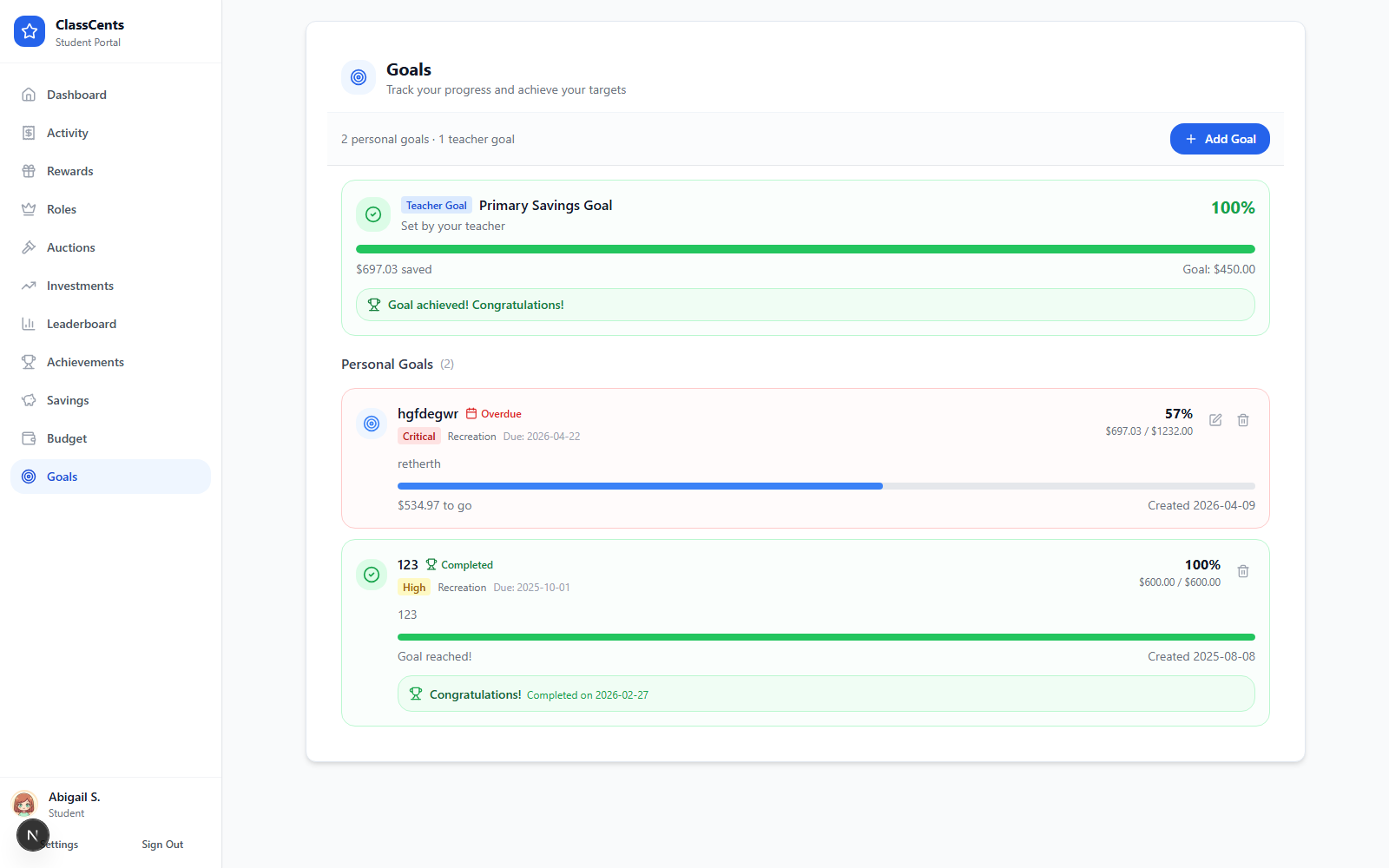
Students click Add Goal to open the create wizard.Basics
Enter a Goal Title (required, up to 100 chars) and an optional Description.Examples: “New Bicycle”, “Field Trip Money”, “Art Supplies”.
Details
Set the Target Amount (in your classroom’s currency or points), an optional Deadline, a Category, and a Priority.Categories: Personal · Education · Recreation · Savings · OtherPriorities: Low · Medium · High · Very High · Critical
Tracking Progress
- The goal card shows a progress bar comparing the student’s current spending balance to the target amount.
- A goal automatically marks Completed when the student’s balance reaches the target.
- Students can Edit or Delete a goal any time from the goal card menu.
Goals don’t reserve currency. The student is free to spend their balance — but if they do, the goal’s progress bar will drop accordingly.
Tips for Teachers
Talk about it
Encourage students to set at least one goal at the start of the term so they have something to save toward.
Pair with auctions
Use upcoming auction items as natural goal targets — students self-motivate to earn.