

Before You Begin
Make sure you have:- A ClassCents teacher account
- A list of your students’ names
- Ideas for 5-10 rewards your students would enjoy
Step-by-Step Setup
1. Create the Classroom
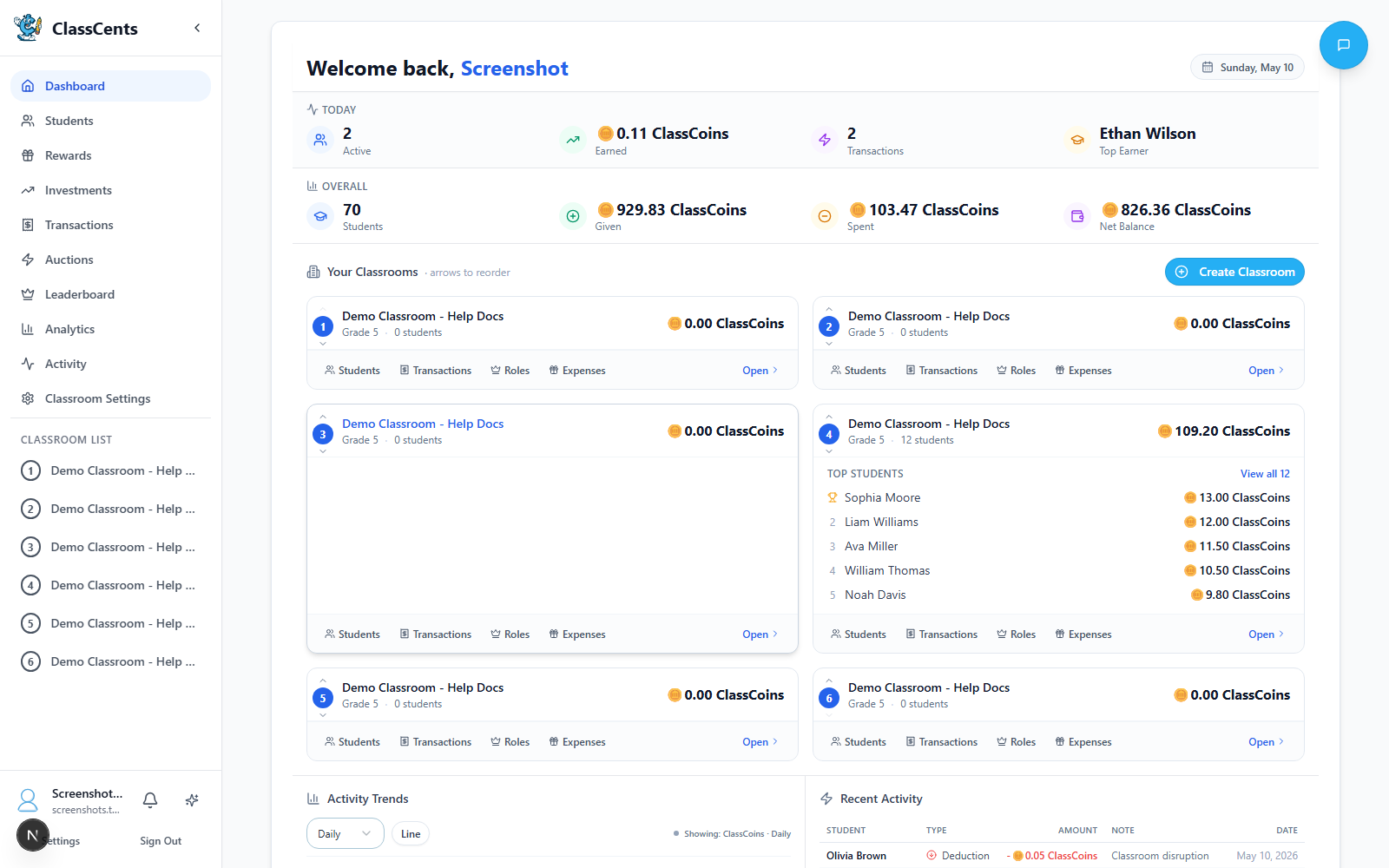
Access Classroom Management
From your dashboard, find the Your Classrooms card and click Create Classroom. A 2-step wizard opens.
Step 1 — Basics
- Classroom Name (required): e.g., “Mrs. Johnson’s 4th Grade” or “Period 3 Math”
- Grade Level (optional): A number from 1–12
Step 2 — Settings
- Class Goal Amount (optional): A shared classroom savings target shown on the classroom card
- Starting Balance (optional): Every new student added to this classroom will begin with this balance

2. Configure Your Currency
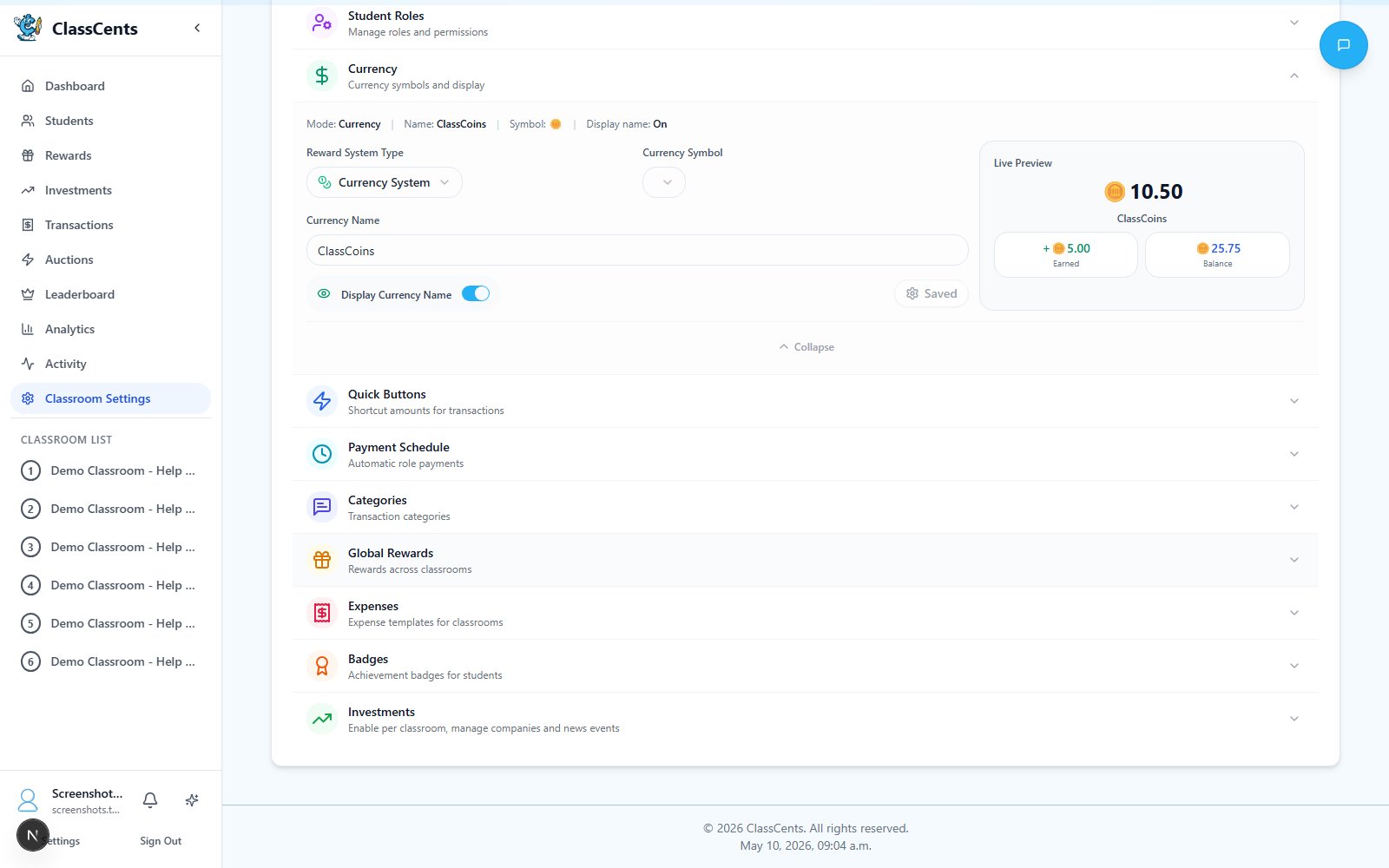
Navigate to Classroom Currency
Go to Settings → Classroom Settings → Currency (page titled Classroom Currency).
Customize Your Currency
- Reward System Type: Points System (whole numbers) or Currency System (dollar-style with decimals)
- Currency Symbol (Currency mode only): Choose from
$ £ € ¥ ₹ ₱ ₩ ₦ ฿ ₫ ₴ - Currency Name: Make it fun! Examples:
- “Eagle Bucks” or “Eagle Dollars”
- “Star Points” or “Superstar Cash”
- “ClassCash” or “Scholar Dollars”
- Display Currency Name: Toggle on to show the name alongside balances

3. Add Your Students
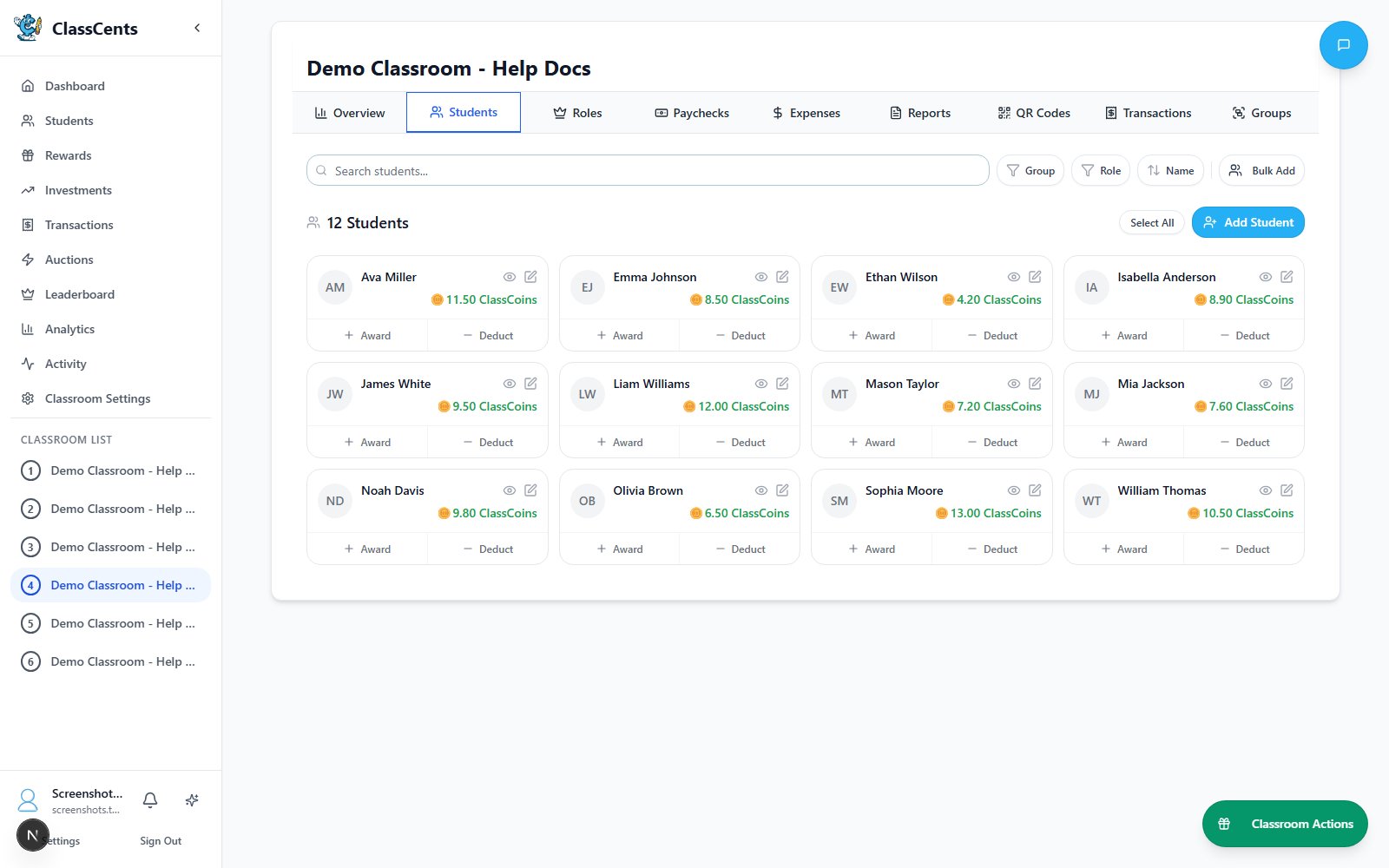
Choose Addition Method
Option A: Individual Add
- Click Add Student to open the Add New Student dialog
- Enter first name and last name
- Click Add Student to save
- Click Bulk Add in the Students header
- Fill in the quick-add rows for multiple students
- All students are added with default settings
Add Individual Student

Bulk Add Multiple Students

4. Create Your First Rewards
Open the Reward Builder
Click the dashed Add New Reward card to open the Create New Global Reward dialog.
Fill in Reward Details
- Reward Title: What students see (e.g., “Homework Pass”)
- Cost: The price in your currency
- Stock: How many are available before it sells out
- Select Reward Icon: Pick from the icon library, or Upload Custom Image (optional)
Add Starter Rewards
Create a mix of low, medium, and high-cost rewards. Here are some ideas:Low Cost (5–10 points)
- Pencil or eraser
- Sticker
- 5 minutes free time
- Homework pass
- Choose your seat for a day
- Lunch with teacher
- Extra recess time
- Special privilege for a week
- Technology time

5. Award Your First Points
Award the Whole Class
Click Award All Students in the action toolbar. Enter an Amount and a Reason for Award (e.g., “Great participation today!”), then confirm.
Award an Individual Student
Click a student card and use Give Points to open the dialog. Set an amount, add a reason, and confirm. Quick-action buttons let you award or deduct preset amounts in one click.

You’re All Set! 🎉
Your classroom economy is now live! Here’s what to do next:Generate QR Codes
Enable students to access their dashboards
Set Up Classroom Jobs
Create paid jobs for regular earning opportunities
Create Achievement Badges
Automatically reward milestones
Configure Payment Schedule
Set when automated payments occur (NEW!)
Common First-Week Tips
Explain the System to Students
Explain the System to Students
- Introduce the currency concept
- Explain how to earn points
- Show them the rewards they can work toward
- Demonstrate the student dashboard
Award Points Generously at First
Award Points Generously at First
- Be more generous the first week to build excitement
- Catch students doing things right
- Create quick wins to hook students on the system
Make First Purchases Happen Fast
Make First Purchases Happen Fast
- Ensure low-cost rewards exist
- Celebrate first purchases publicly
- Let multiple students “win” early to build momentum
Get Feedback and Adjust
Get Feedback and Adjust
- Ask students what rewards they want
- Adjust prices based on what’s too easy/hard to afford
- Let students help shape the economy
Questions? Check our FAQ or contact support anytime!