

Overview
Every point earned or spent in ClassCents is tracked through the transaction system. This provides complete visibility into student behavior patterns, earning trends, and spending habits.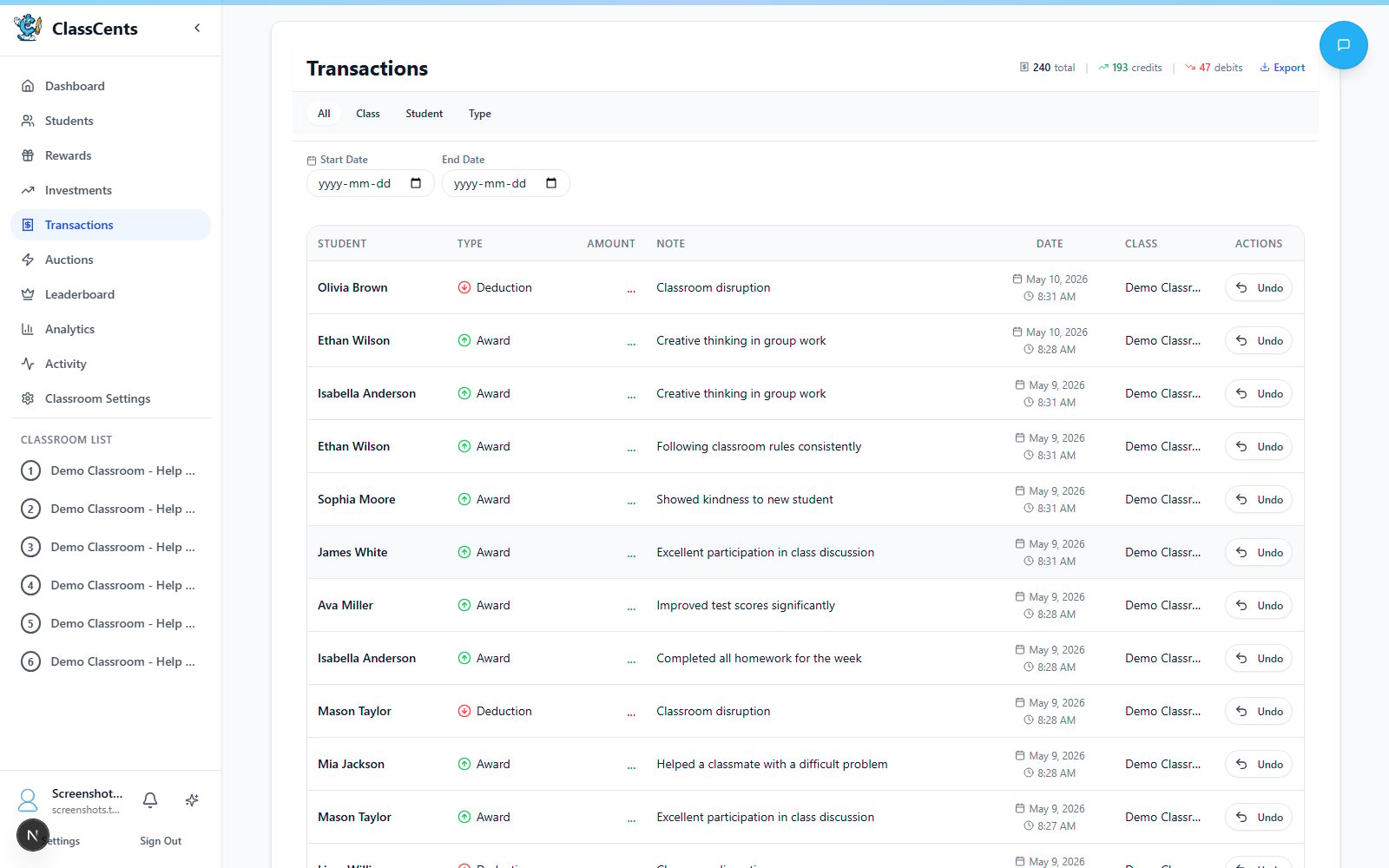
Creating Transactions
Transactions are created from the classroom workspace — not a separate “Transactions” form. The Transactions page is a read-only ledger.Award the Whole Class
Open Award All Students
From your classroom workspace, click Award All Students in the action toolbar.
Choose an Amount
Tap a Quick Amount button or type a custom amount. Quick amounts come from your Quick Buttons settings.
Pick a Reason
Use the Academic / Social / Behavioral template tabs to insert a preset reason, or type your own in the Reason for Award field.
Award an Individual Student
Use Give Points or a Quick Button
- Quick action buttons apply preset positive amounts (and negative ones for deductions) in one click
- Give Points opens a dialog with a list of preset reasons (“Excellent participation”, “Helping classmates”, etc.) plus a Custom reason field and Amount
Deductions
There is no separate “Deduct Points” page. Deductions happen through:- Negative Quick Buttons (e.g.,
-1,-5) on a student card - A negative amount entered in the Give Points dialog
- Automated systems (bills, auction bids, reward redemptions)
Transaction Categories & Templates
ClassCents lets you create your own transaction categories and reusable templates that show up as quick-pick buttons in the Give Points dialog. Navigate to Settings → Classroom Settings → Transaction Categories to manage them.Category Types
Every category you create has one of three types:Both
Awards and deductions — e.g., “Homework” (complete = award, missing = deduct)
Awards Only
Positive transactions — e.g., “Helping others”, “Extra credit”
Deductions Only
Negative transactions — e.g., “Late work”, “Missing supplies”
Templates
Within each category you can add templates — short labels with a description that pre-fill the reason field on a transaction.Add Templates
Inside any category, click Add Template and enter a label (“Helped a friend”) and description.
Bulk Transactions
The Award All Students dialog (described above) is the fastest way to award the whole class. For sub-groups, use Student Groups (Pro) or open a group’s view and award only its members.Bulk awards create one transaction record per student so analytics, paystubs, and student transaction history stay accurate.
Transaction History
Viewing the Ledger
Open the Transactions page from your classroom workspace to see the full ledger.- Classroom view: Every transaction across every student
- Student view: Open a student to see their personal transaction history
- Date filters: Filter by day, week, month, or custom range
- Source filters: View only specific transaction types (manual award, job payout, reward redemption, bill payment, badge reward, auction, investment transfer)
- Search: Find transactions by reason text
Transaction Record Fields
Each transaction record includes:Exact date and time of the transaction
Which student was involved
Positive for awards, negative for deductions / spending
Why the transaction occurred
System category — e.g.,
manual, role_payout, reward_redemption, bill_payment, badge_reward, auction, investment_transferStudent’s balance after this transaction
Quick Buttons
Quick Buttons are one-tap amount shortcuts that appear on every student card and inside the Award All dialog.Add Amounts
Type an amount and click Add. Use positive numbers for awards and negative numbers for deductions. You can have up to 12 quick buttons.
Transaction Analytics
View insights about your classroom economy:- Total Volume: How much currency is circulating
- Earning Trends: When students earn most
- Category Breakdown: Which activities earn the most
- Individual Patterns: Identify high earners and those who may need support
- Class Averages: Compare students to class mean
Related Topics
Currency System
Understand how the point system works
Analytics
Deep dive into transaction analytics