

Overview
Students access their own personal dashboard to view their balance, shop for rewards, participate in auctions, and track their progress - all without needing a password!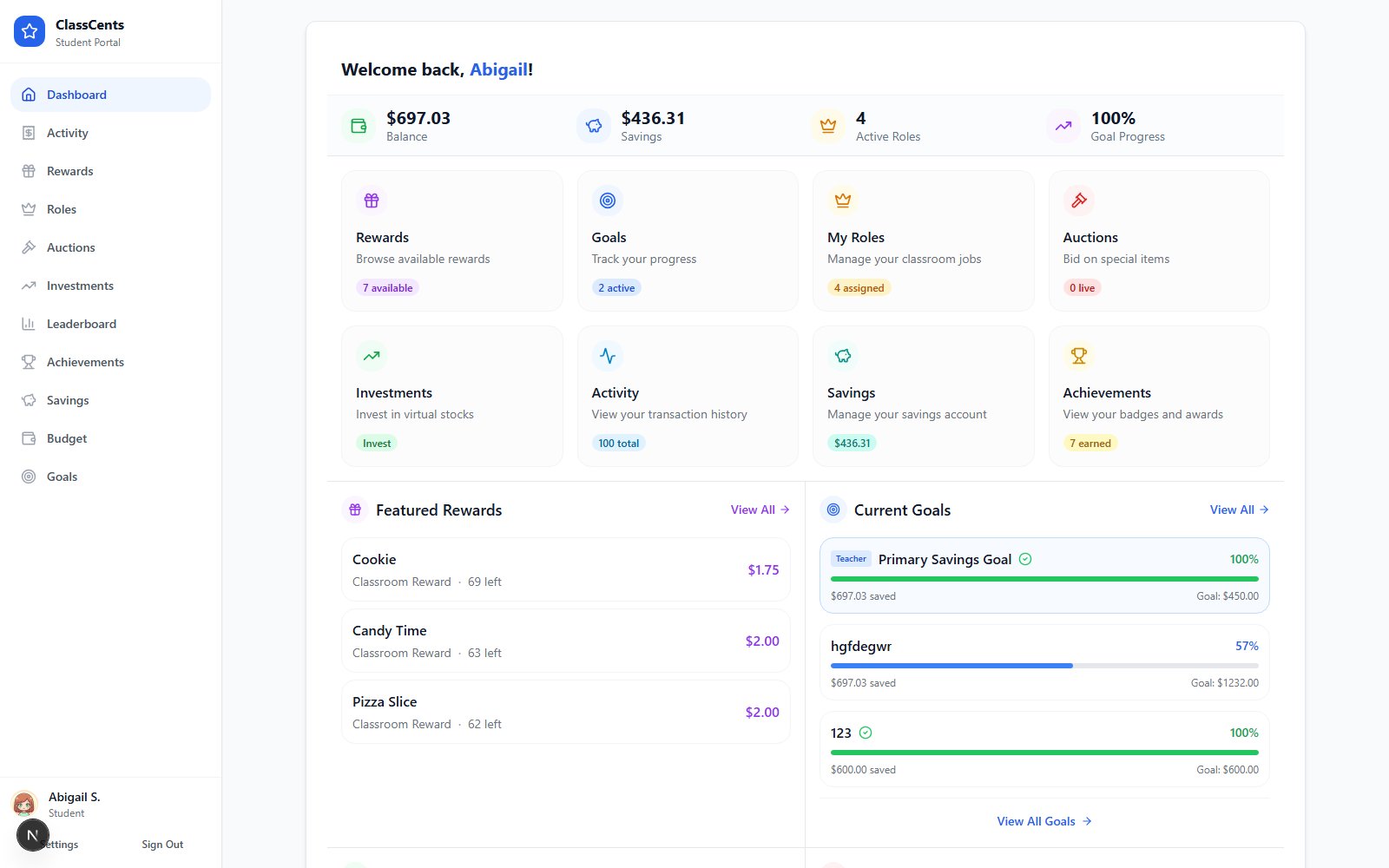
Access Methods
There are two ways students can sign in — both passwordless. Each student has a unique QR code and a PIN code.- QR Code Login (Recommended)
- PIN Code Login
- Direct URL Access
Easiest for K-8 students
Teacher Prints QR Cards
Open the classroom → QR Codes tab → Print Cards sub-tab → select students → click Print Cards. Each card shows the student’s name, QR code, and PIN.
Student Receives Card
Hand out the printed cards. Students keep them in a folder, planner, or laminated.
What Students Can See
Current Balance
- Total currency available
- Recent transactions
- Earning history
- Savings progress toward goals
Rewards Shop
- Browse available rewards
- See prices and descriptions
- Purchase rewards directly
- View purchase history
Active Auctions
- See current auctions
- Place and manage bids
- View auction history
- Track wins and losses
Achievements
- Earned badges display
- Progress toward next badges
- Total achievements count
- Badge showcase
Classroom Jobs
- Current job assignments
- Payment schedule
- Apply for available jobs
- Job history
Leaderboard
- Class ranking (if enabled)
- Top earners
- Achievement leaders
- Friendly competition
Student Dashboard Features
Purchasing Rewards
Students can only purchase if they have sufficient balance - the system prevents overdrafts automatically unless teacher configured otherwise.
Bidding in Auctions
Place Bid
- Enter amount (must be higher than current bid)
- Funds are reserved but not yet deducted
- Can place multiple bids on different auctions
Monitor Status
- See if outbid (funds released)
- Place new higher bid if desired
- Wait for auction to end
Setting Personal Goals
Students can set savings goals:- Enter goal name (e.g., “Save for Homework Pass”)
- Set target amount
- Dashboard shows progress bar toward goal
- Motivates delayed gratification
Mobile-Friendly Design
The student dashboard is fully responsive:- Phones: Clean single-column layout
- Tablets: Two-column for shopping
- Chromebooks: Full dashboard experience
- Desktop: Large, easy-to-read displays
Privacy & Security
What Students CAN See
What Students CAN See
- Their own balance and transaction history
- Available rewards and auctions
- Their earned badges
- Their job assignments
- Classroom leaderboard (if enabled)
What Students CANNOT See
What Students CANNOT See
- Other students’ balances
- Other students’ transaction details
- Teacher controls and settings
- Admin features
- Other classrooms’ data
No Password Required
No Password Required
QR code system is secure because:
- Unique nano IDs are cryptographically generated
- URLs not easily guessable
- Can regenerate codes if compromised
- Students can’t access other accounts
Teacher Controls
Classroom-wide controls available to teachers:- Refresh Access (QR Codes tab) — generates a new QR + PIN for selected students. Old printed cards stop working immediately.
- Investments / Market (Settings → Classroom Settings → Investments) — toggle the Investments tab on or off per classroom.
- Bills (Classroom → Expenses) — enable or disable bill assignments per classroom.
- Payment Schedule (Settings → Classroom Settings → Payment Schedule) — control when job payments and bill deductions process.
Common Questions
Can students access from home?
Can students access from home?
Yes! Students can access their dashboard from any device, anywhere with internet.This is great for:
- Showing parents their progress
- Shopping for rewards at home
- Checking balance before school
- Building excitement outside classroom
What if a student loses their card?
What if a student loses their card?
Easy fix:
- Open the classroom’s QR Codes tab
- Select the student and click Refresh Access
- A new QR code and PIN are generated; the old card stops working
- Print and hand out the new card
- All balances, badges, and history are preserved
Can students change their own balance?
Can students change their own balance?
No! Students have read-only access to their financial data. Only teachers can award or deduct currency through the teacher dashboard.
Is it safe for young students?
Is it safe for young students?
Yes! The dashboard is designed for K-8:
- No personal information displayed
- No external links or advertisements
- Age-appropriate interface
- Teacher-controlled access
Troubleshooting Access Issues
QR Code Not Working
QR Code Not Working
Try:
- Ensure good lighting for camera scan
- Hold camera steady and at proper distance
- Try different QR code scanning app
- Regenerate the QR code if damaged
Dashboard Shows Old Data
Dashboard Shows Old Data
Solution: Refresh the pageData updates in real-time, but browser may cache. Click refresh or F5.
Student Can't Purchase Rewards
Student Can't Purchase Rewards
Check:
- Student has sufficient balance
- Reward is marked as available
- Shop feature is enabled by teacher
- Reward hasn’t reached quantity limit
Related Topics
QR Code System
Detailed QR code setup and management
Earning & Spending
How students earn and use currency