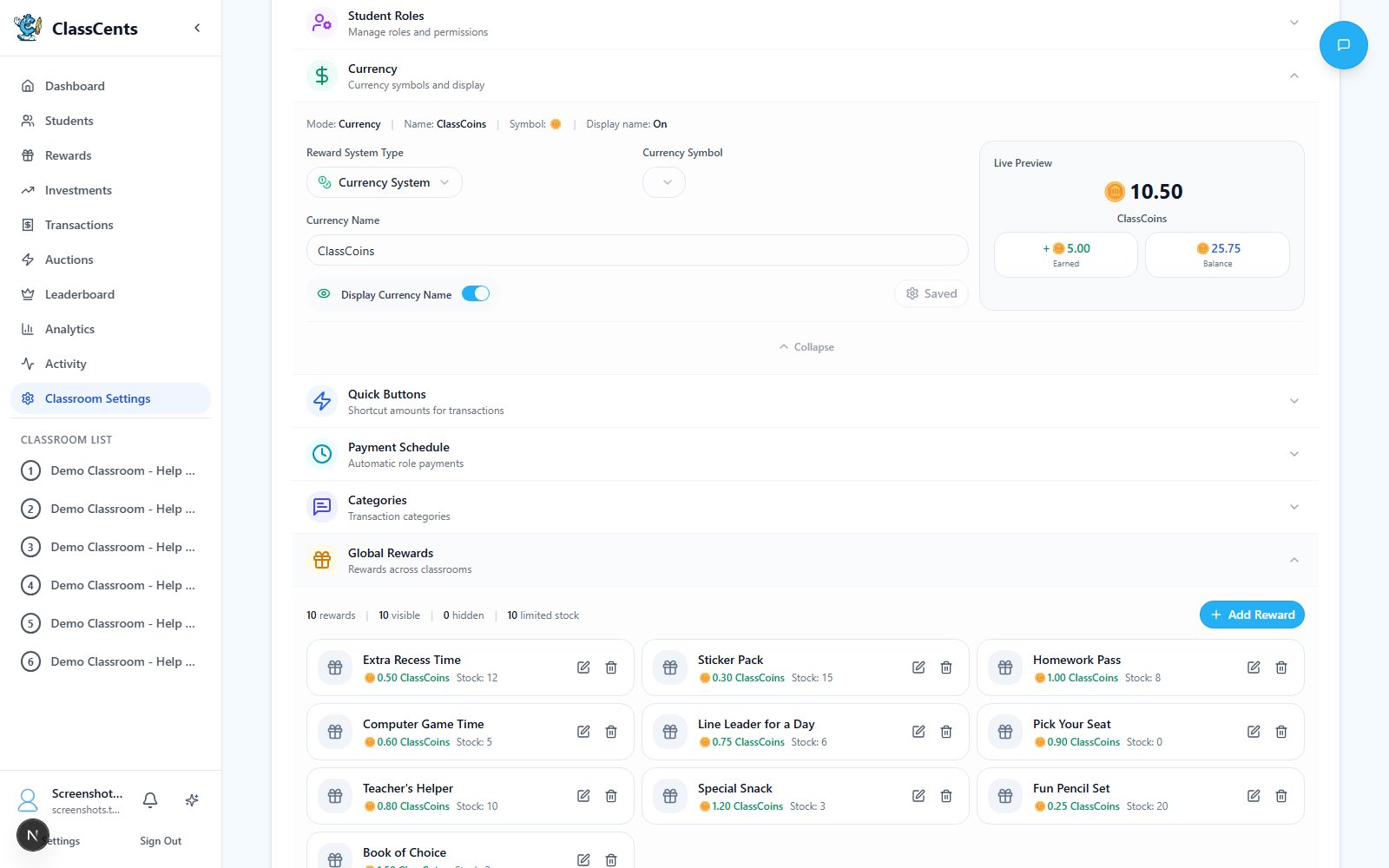
The Redeem page is a fast bulk-redemption grid: every student down the left, every available reward across the top, with a Redeem button at each intersection. Rewards management view used to control redeemable rewards and stock
Open from a classroom: Redeem tab. URL: /dashboard/classroom/[id]/redeem.

When To Use This

  • End-of-week “shopping” time where students line up to spend
  • Processing a stack of physical “I want this” cards quickly
  • Any moment you’d rather click than dig through individual student profiles
For self-service redemptions where students click “Redeem” themselves on their own dashboard, see Rewards.

What’s Shown

  • Rows: All students in the classroom, with their current balance.
  • Columns: All rewards from the global rewards catalog where:
    • visible is on
    • stock is greater than zero
  • Redeem button: Disabled when the student can’t afford the reward or stock is zero.
A subtitle at the top tells you, for example: “12 of 24 students can afford at least one reward.”

Redeeming

1

Find the student row

Scroll or search to the student who’s redeeming.
2

Click Redeem on the chosen reward

The button only enables when the student has enough balance and the reward is in stock.
3

Confirmation

On success, a toast confirms the redemption. The student’s balance drops by the reward cost and the reward’s stock drops by 1.

Behind the Scenes

Each redemption:
  1. Subtracts the reward cost from the student’s balance.
  2. Decrements the reward’s stock.
  3. Writes a redeem transaction with the note "Redeemed: <reward title>".
  4. Logs an activity feed entry (reward_redeemed).
Redemptions are immediate. There’s no undo button — if you click the wrong cell, you’ll need to manually award the cost back to the student and bump the reward’s stock back up.