

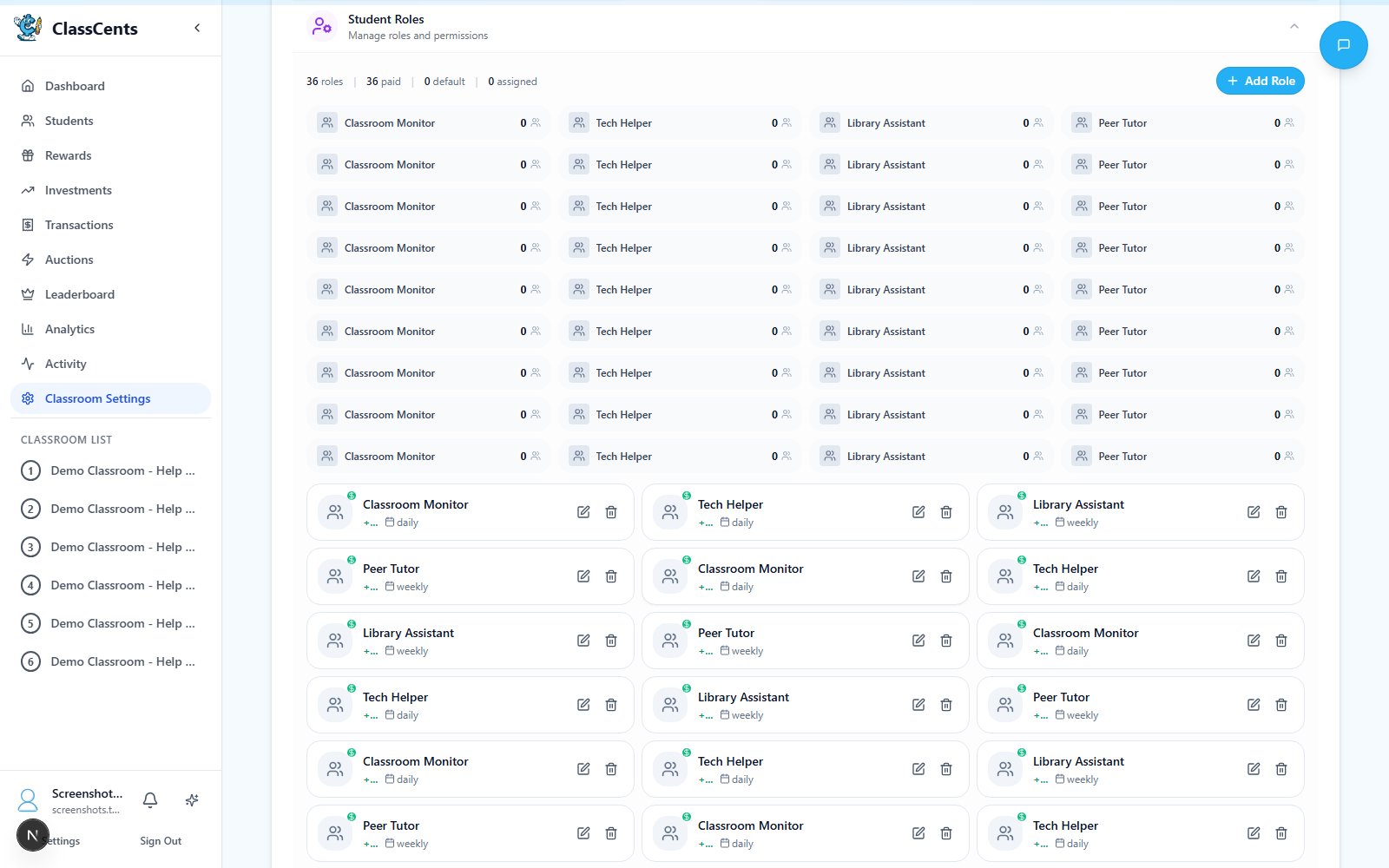
Job Management vs. Jobs Settings
These two pages are easy to confuse — here’s the split:| Page | Purpose |
|---|---|
| Settings → Classroom Settings → Jobs | Define jobs: title, icon, payout amount, frequency, duties/checklist. See Paid Jobs. |
| Classroom Job Management dashboard | Assign students to those defined jobs, see who currently holds what, and review duties. |
Only paid jobs (
is_paid = true) appear on the Job Management dashboard. Unpaid jobs, if you’ve created any, are managed alongside paid ones in the Jobs settings page.What You’ll See
- Job cards — One card per paid job you’ve defined, showing the icon, title, payout amount, and frequency (daily / weekly / bi-weekly / monthly).
- Current assignments — Which student currently holds the job, along with when they were assigned.
- Duties / checklist — The duty list and any checklist items you defined for the job.
Common Workflows
Assign a student to a job
On a job card, pick a student from the assignment dropdown. The student becomes eligible for that job’s next scheduled payout.
Swap or remove
Reassign to a different student, or remove the assignment to leave the job vacant. Vacant jobs do not pay out.