> ## Documentation Index
> Fetch the complete documentation index at: https://help.classcents.com/llms.txt
> Use this file to discover all available pages before exploring further.
# QR Code Login System
> Enable secure, password-free student access with QR codes
## Overview
The QR code system provides secure, password-free access for students. Each student gets a unique **QR code** and a matching **PIN code** — both printed on a single login card. They can scan the QR (personal device) or type the PIN (shared device) to sign in.
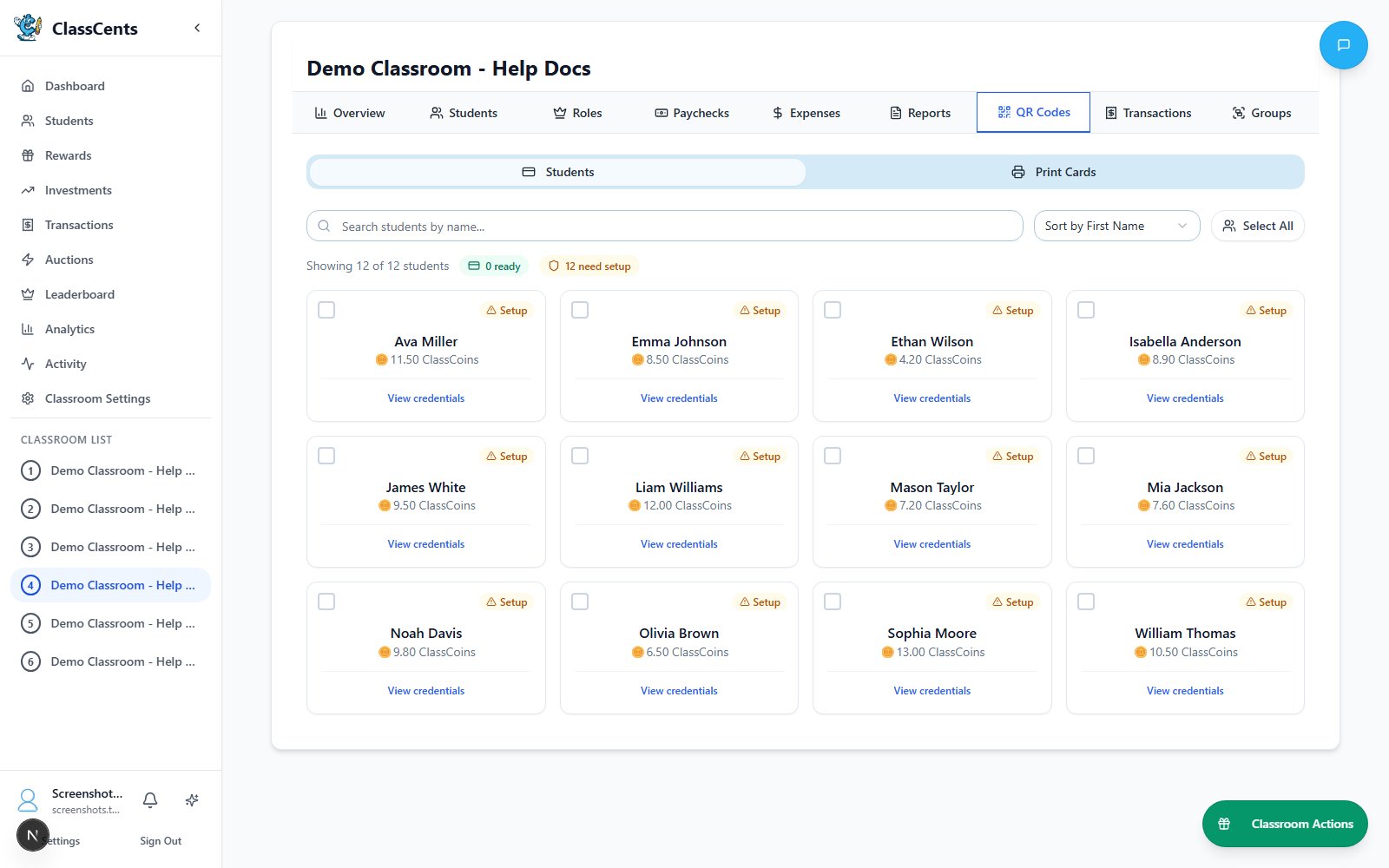 ## Printing Login Cards
From your classroom view, click **QR Codes** in the sidebar.
On the **Students** sub-tab, search/sort the roster and check the students whose cards you want to print. Use the select-all checkbox to grab the whole class.
Click the **Print Cards** sub-tab. You'll see a preview of the cards laid out for printing.
Click the **Print Cards (N)** button to open your browser's print dialog. Each card shows the student's name, their QR code, and their PIN.
Print cards once at the start of the year, then use **Refresh Access** only when a card is lost or compromised.
## Distribution Methods
**Best for**: Personal student folders
* Print one QR code per student
* Each page includes student name
* Students keep in binder/folder
* Easy replacement if lost
Most common method for K-8
**Best for**: Classroom reference
* All QR codes on one sheet
* Post on classroom wall
* Students scan from board
* Teacher keeps master copy
Great for shared device classrooms
**Best for**: Durability
* Print individual codes
* Laminate for protection
* Students carry like ID cards
* Very long-lasting
Best for frequent use classrooms
**Best for**: 1:1 device classrooms
* Email/share QR code images to students
* Students save to device
* Bookmark direct URL instead
* No printing needed
Most eco-friendly option
## Using QR Codes
### For Students
Use phone camera, tablet, or Chromebook camera app
* Point camera at QR code
* Wait for URL to appear
* Tap the notification/link
Browser opens directly to student's dashboard - no login form!
Most modern devices recognize QR codes in the native camera app automatically!
### For Teachers
Monitor QR code usage:
* See last access time for each student
* Track which students are actively using dashboards
* Identify students who may need device support
## Security Features
Each QR code contains a student-specific nano ID:
* Cryptographically generated
* Impossible to guess
* One student per code
* Can't be used to access other accounts
If a card is lost or compromised:
1. Select the student(s) on the **Students** sub-tab
2. Click **Refresh Access**
3. Confirm — a new QR code and PIN are generated for each selected student
4. The old QR and PIN immediately stop working
5. Reprint the affected cards from the **Print Cards** sub-tab
Balances, badges, transactions, and job assignments are preserved.
QR codes contain:
* Random nano ID only
* No student name in URL
* No personal identifying info
* Safe to display publicly
* Sessions expire after inactivity
* Students automatically logged out
* Must scan QR again to access
* Prevents unauthorized access on shared devices
## Best Practices
**Explain to students**: QR codes are like personal keys - don't share them!
**Create backups**: Keep digital copies of all QR codes in secure location
**Laminate high-use codes**: Protects from wear and tear
**Test before distributing**: Verify each QR code works before giving to students
**Display classroom master**: Post all codes on wall for easy access during activities
**Regular check-ins**: Verify all students can still access their dashboards
## Printing Tips
**Optimal QR Code Sizes**:
* **2x2 inches**: Individual cards (minimum readable size)
* **3x3 inches**: Standard printouts (recommended)
* **5x5 inches**: Classroom display
* **8x8 inches**: Large format for distance scanning
Larger is better for classroom wall displays!
**Best practices**:
* Use laser printer if possible (sharper codes)
* Black and white is fine
* Avoid inkjet if codes will get wet
* High resolution (300 DPI minimum)
* Good contrast between code and background
**Options**:
* Standard paper: Cheapest, works fine
* Cardstock: More durable, feels premium
* Laminated: Best protection, reusable
* Sticker paper: Can attach to notebooks
## Classroom Setup Ideas
**Morning check-in station**:
* Codes posted by door
* Students scan as they enter
* Check balance and set daily goals
* Builds routine and excitement
**Device access integration**:
* Students scan before using classroom devices
* Shop during designated tech time
* Combine dashboard check with learning activities
**End-of-week tradition**:
* Weekly dashboard review
* Shopping time Friday afternoon
* Auction participation
* Celebrate top earnersin class
**Personal organization**:
* QR code in front of folder
* Quick access during any class time
* Students responsible for their own code
* Teaches personal accountability
## Troubleshooting
**Try these solutions**:
1. **Improve lighting** - QR codes need good light
2. **Clean camera lens** - smudges prevent scanning
3. **Hold steady** - keep camera still for 2-3 seconds
4. **Adjust distance** - move closer or farther
5. **Try different app** - some QR readers work better
6. **Check for damage** - regenerate if code is torn/crinkled
**This means**:
* Student may have been archived/deleted
* QR code was regenerated and this is old code
* Database connection issue
**Solution**:
* Generate fresh QR code for student
* Verify student is active in your roster
* Contact support if persists
**Very rare but possible**:
* Student scanning someone else's code
* QR codes got mixed up during distribution
**Solution**:
* Verify student has correct code (name should match)
* Regenerate all codes if widespread issue
## Advanced: Direct URL Access
For older students or 1:1 device environments:
Each student dashboard has a direct URL:
```
https://classcents.com/student/dashboard/ABC123XYZ
```
Students can:
* Bookmark this URL
* Type it directly
* Add to home screen on mobile devices
* Share with parents for progress viewing
Keep nano IDs private! Anyone with the URL can access that student's dashboard.
## Parent Access
Parents can view student progress:
1. Send QR code image to parents
2. Parents scan with their phone
3. They see same dashboard as student
4. Great for parent-teacher conferences!
Encourage parents to check dashboards weekly - increases accountability and family engagement with classroom!
## Related Topics
Full overview of dashboard features
How students earn and spend currency
## Printing Login Cards
From your classroom view, click **QR Codes** in the sidebar.
On the **Students** sub-tab, search/sort the roster and check the students whose cards you want to print. Use the select-all checkbox to grab the whole class.
Click the **Print Cards** sub-tab. You'll see a preview of the cards laid out for printing.
Click the **Print Cards (N)** button to open your browser's print dialog. Each card shows the student's name, their QR code, and their PIN.
Print cards once at the start of the year, then use **Refresh Access** only when a card is lost or compromised.
## Distribution Methods
**Best for**: Personal student folders
* Print one QR code per student
* Each page includes student name
* Students keep in binder/folder
* Easy replacement if lost
Most common method for K-8
**Best for**: Classroom reference
* All QR codes on one sheet
* Post on classroom wall
* Students scan from board
* Teacher keeps master copy
Great for shared device classrooms
**Best for**: Durability
* Print individual codes
* Laminate for protection
* Students carry like ID cards
* Very long-lasting
Best for frequent use classrooms
**Best for**: 1:1 device classrooms
* Email/share QR code images to students
* Students save to device
* Bookmark direct URL instead
* No printing needed
Most eco-friendly option
## Using QR Codes
### For Students
Use phone camera, tablet, or Chromebook camera app
* Point camera at QR code
* Wait for URL to appear
* Tap the notification/link
Browser opens directly to student's dashboard - no login form!
Most modern devices recognize QR codes in the native camera app automatically!
### For Teachers
Monitor QR code usage:
* See last access time for each student
* Track which students are actively using dashboards
* Identify students who may need device support
## Security Features
Each QR code contains a student-specific nano ID:
* Cryptographically generated
* Impossible to guess
* One student per code
* Can't be used to access other accounts
If a card is lost or compromised:
1. Select the student(s) on the **Students** sub-tab
2. Click **Refresh Access**
3. Confirm — a new QR code and PIN are generated for each selected student
4. The old QR and PIN immediately stop working
5. Reprint the affected cards from the **Print Cards** sub-tab
Balances, badges, transactions, and job assignments are preserved.
QR codes contain:
* Random nano ID only
* No student name in URL
* No personal identifying info
* Safe to display publicly
* Sessions expire after inactivity
* Students automatically logged out
* Must scan QR again to access
* Prevents unauthorized access on shared devices
## Best Practices
**Explain to students**: QR codes are like personal keys - don't share them!
**Create backups**: Keep digital copies of all QR codes in secure location
**Laminate high-use codes**: Protects from wear and tear
**Test before distributing**: Verify each QR code works before giving to students
**Display classroom master**: Post all codes on wall for easy access during activities
**Regular check-ins**: Verify all students can still access their dashboards
## Printing Tips
**Optimal QR Code Sizes**:
* **2x2 inches**: Individual cards (minimum readable size)
* **3x3 inches**: Standard printouts (recommended)
* **5x5 inches**: Classroom display
* **8x8 inches**: Large format for distance scanning
Larger is better for classroom wall displays!
**Best practices**:
* Use laser printer if possible (sharper codes)
* Black and white is fine
* Avoid inkjet if codes will get wet
* High resolution (300 DPI minimum)
* Good contrast between code and background
**Options**:
* Standard paper: Cheapest, works fine
* Cardstock: More durable, feels premium
* Laminated: Best protection, reusable
* Sticker paper: Can attach to notebooks
## Classroom Setup Ideas
**Morning check-in station**:
* Codes posted by door
* Students scan as they enter
* Check balance and set daily goals
* Builds routine and excitement
**Device access integration**:
* Students scan before using classroom devices
* Shop during designated tech time
* Combine dashboard check with learning activities
**End-of-week tradition**:
* Weekly dashboard review
* Shopping time Friday afternoon
* Auction participation
* Celebrate top earnersin class
**Personal organization**:
* QR code in front of folder
* Quick access during any class time
* Students responsible for their own code
* Teaches personal accountability
## Troubleshooting
**Try these solutions**:
1. **Improve lighting** - QR codes need good light
2. **Clean camera lens** - smudges prevent scanning
3. **Hold steady** - keep camera still for 2-3 seconds
4. **Adjust distance** - move closer or farther
5. **Try different app** - some QR readers work better
6. **Check for damage** - regenerate if code is torn/crinkled
**This means**:
* Student may have been archived/deleted
* QR code was regenerated and this is old code
* Database connection issue
**Solution**:
* Generate fresh QR code for student
* Verify student is active in your roster
* Contact support if persists
**Very rare but possible**:
* Student scanning someone else's code
* QR codes got mixed up during distribution
**Solution**:
* Verify student has correct code (name should match)
* Regenerate all codes if widespread issue
## Advanced: Direct URL Access
For older students or 1:1 device environments:
Each student dashboard has a direct URL:
```
https://classcents.com/student/dashboard/ABC123XYZ
```
Students can:
* Bookmark this URL
* Type it directly
* Add to home screen on mobile devices
* Share with parents for progress viewing
Keep nano IDs private! Anyone with the URL can access that student's dashboard.
## Parent Access
Parents can view student progress:
1. Send QR code image to parents
2. Parents scan with their phone
3. They see same dashboard as student
4. Great for parent-teacher conferences!
Encourage parents to check dashboards weekly - increases accountability and family engagement with classroom!
## Related Topics
Full overview of dashboard features
How students earn and spend currency