> ## Documentation Index
> Fetch the complete documentation index at: https://help.classcents.com/llms.txt
> Use this file to discover all available pages before exploring further.
# Savings
> How students save for goals using their Savings Account
## Overview
Students have access to a personal **Savings Account** where they can set money aside, separate from their spending balance — all from their own dashboard. This feature teaches real-world financial planning skills in an engaging, visual way.
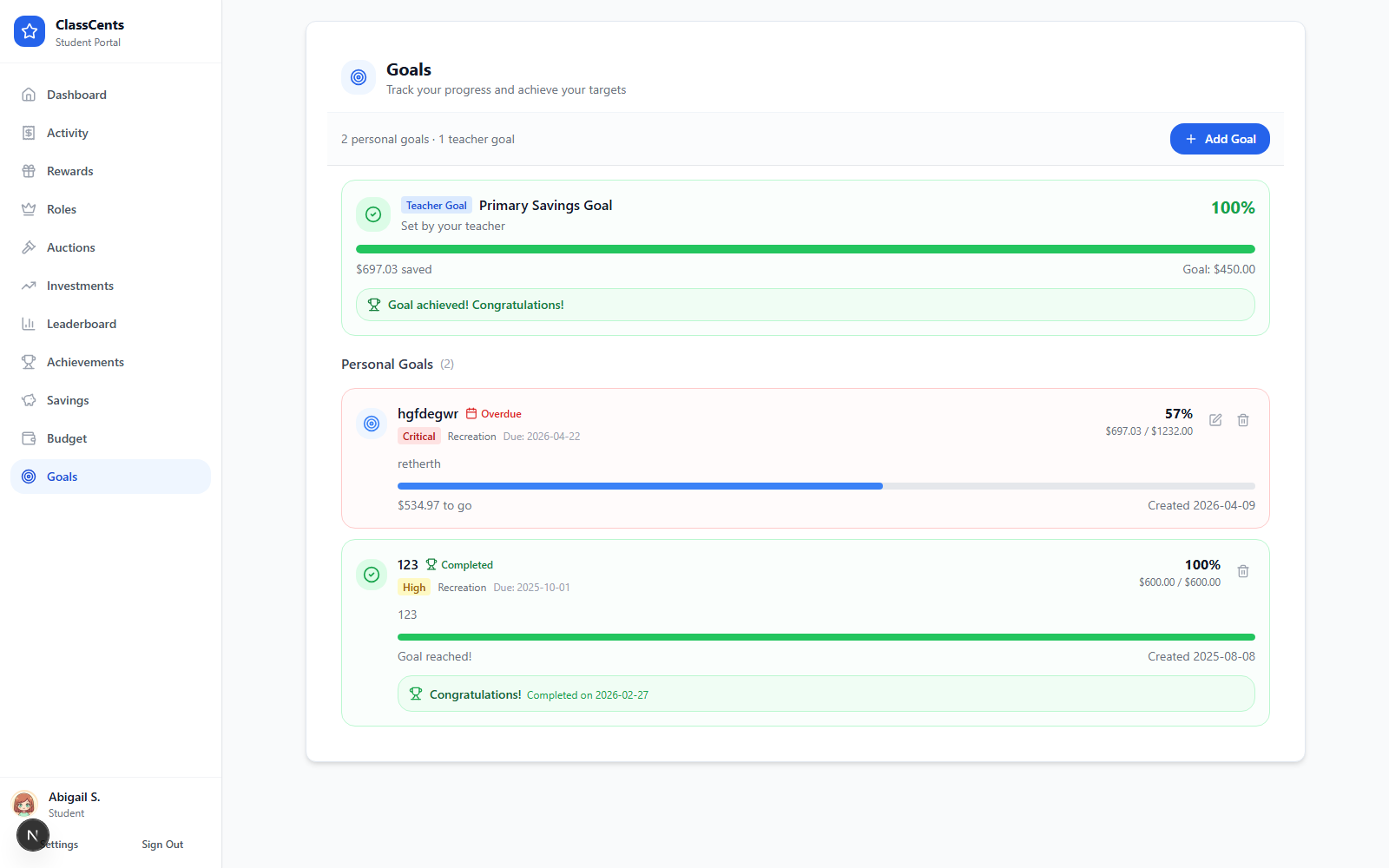 ## Savings Account
The Savings Account feature teaches students the value of setting money aside. Students access it from their dashboard navigation.
### Three Balance Cards
Available for purchases right now
Saved for later — shows percentage of total assets
Combined spending + savings balance
### Transferring Money
Students can move money between their spending and savings accounts:
Type the amount to save, or click **Max** to transfer the full spending balance
Money moves instantly from spending to savings
A confetti animation celebrates the student's savings decision
Click the **From Savings** tab
Type the amount to withdraw, or click **Max** for the full savings balance
Money moves back to the spending balance immediately
### Transfer History
Students can review their past transfers showing:
* Date and time of each transfer
* Amount transferred
* Direction (→ to savings or ← from savings)
* Resulting balances after the transfer
## Savings Tips for Students
When you get paid from your classroom job, move some money to savings **before** spending on rewards. Even a small amount adds up over time!
Try dividing your income:
* **50%**: Save for big goals
* **30%**: Spend on medium rewards
* **20%**: Fun small purchases
Big rewards come up in auctions — having savings set aside means you can bid confidently.
## For Teachers: Encouraging Good Saving
**Celebrate savers!** Publicly recognize students who use their savings accounts effectively. This encourages others to save too.
## Related Topics
Earning income through paid classroom jobs
All the ways students earn and spend currency
Overview of everything students can access
## Savings Account
The Savings Account feature teaches students the value of setting money aside. Students access it from their dashboard navigation.
### Three Balance Cards
Available for purchases right now
Saved for later — shows percentage of total assets
Combined spending + savings balance
### Transferring Money
Students can move money between their spending and savings accounts:
Type the amount to save, or click **Max** to transfer the full spending balance
Money moves instantly from spending to savings
A confetti animation celebrates the student's savings decision
Click the **From Savings** tab
Type the amount to withdraw, or click **Max** for the full savings balance
Money moves back to the spending balance immediately
### Transfer History
Students can review their past transfers showing:
* Date and time of each transfer
* Amount transferred
* Direction (→ to savings or ← from savings)
* Resulting balances after the transfer
## Savings Tips for Students
When you get paid from your classroom job, move some money to savings **before** spending on rewards. Even a small amount adds up over time!
Try dividing your income:
* **50%**: Save for big goals
* **30%**: Spend on medium rewards
* **20%**: Fun small purchases
Big rewards come up in auctions — having savings set aside means you can bid confidently.
## For Teachers: Encouraging Good Saving
**Celebrate savers!** Publicly recognize students who use their savings accounts effectively. This encourages others to save too.
## Related Topics
Earning income through paid classroom jobs
All the ways students earn and spend currency
Overview of everything students can access