> ## Documentation Index
> Fetch the complete documentation index at: https://help.classcents.com/llms.txt
> Use this file to discover all available pages before exploring further.
# Achievements
> Where students see the badges they've earned and what's still locked
The **Achievements** page shows every badge available in the student's classroom and which ones they've already earned.
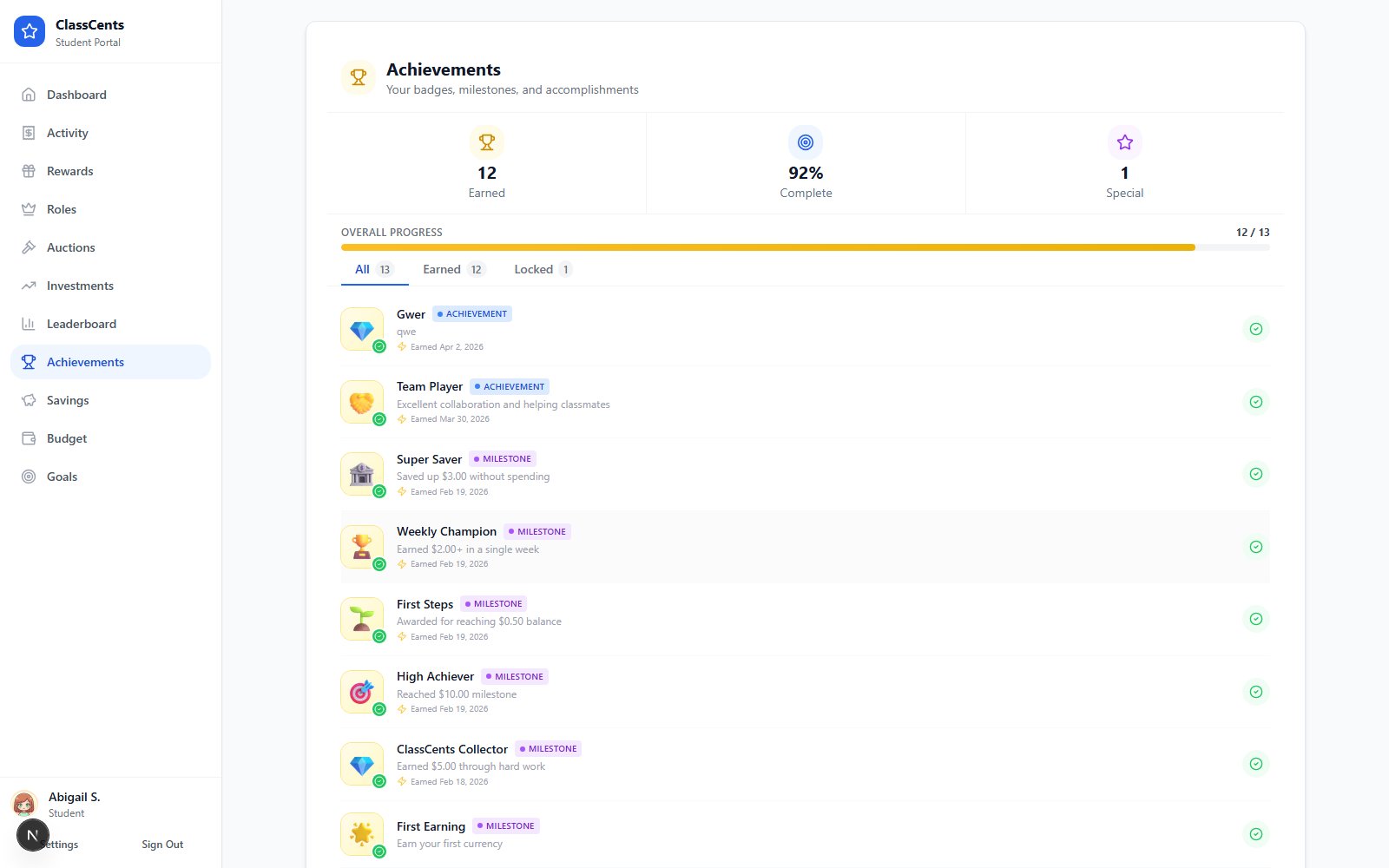 Open from the student dashboard nav: **Achievements**. URL: `/student/achievements/[nano_id]`.
## What Students See
* **Earned badges** appear in full color with the date earned, plus any bonus points awarded.
* **Locked badges** appear grayscale with a small lock icon so students know what they're working toward.
* **Filter pills** at the top let students switch between **All**, **Earned**, and **Locked**.
Badges and the criteria behind them are configured by the teacher in **Settings** → **Classroom Settings** → **Badges**. See the [Badges guide](/advanced/badges) for the full list of criteria types.
## When Badges Appear
* **Automatic badges** are checked hourly. After a student crosses the threshold, the badge typically lands on the Achievements page within an hour.
* **Manual badges** appear instantly when the teacher awards them.
## Companion Pages
See class rankings by balance, weekly earnings, and activity.
Pick an avatar and review account info.
Open from the student dashboard nav: **Achievements**. URL: `/student/achievements/[nano_id]`.
## What Students See
* **Earned badges** appear in full color with the date earned, plus any bonus points awarded.
* **Locked badges** appear grayscale with a small lock icon so students know what they're working toward.
* **Filter pills** at the top let students switch between **All**, **Earned**, and **Locked**.
Badges and the criteria behind them are configured by the teacher in **Settings** → **Classroom Settings** → **Badges**. See the [Badges guide](/advanced/badges) for the full list of criteria types.
## When Badges Appear
* **Automatic badges** are checked hourly. After a student crosses the threshold, the badge typically lands on the Achievements page within an hour.
* **Manual badges** appear instantly when the teacher awards them.
## Companion Pages
See class rankings by balance, weekly earnings, and activity.
Pick an avatar and review account info.