> ## Documentation Index
> Fetch the complete documentation index at: https://help.classcents.com/llms.txt
> Use this file to discover all available pages before exploring further.
# Student Dashboard Access
> How students access and use their ClassCents dashboard
## Overview
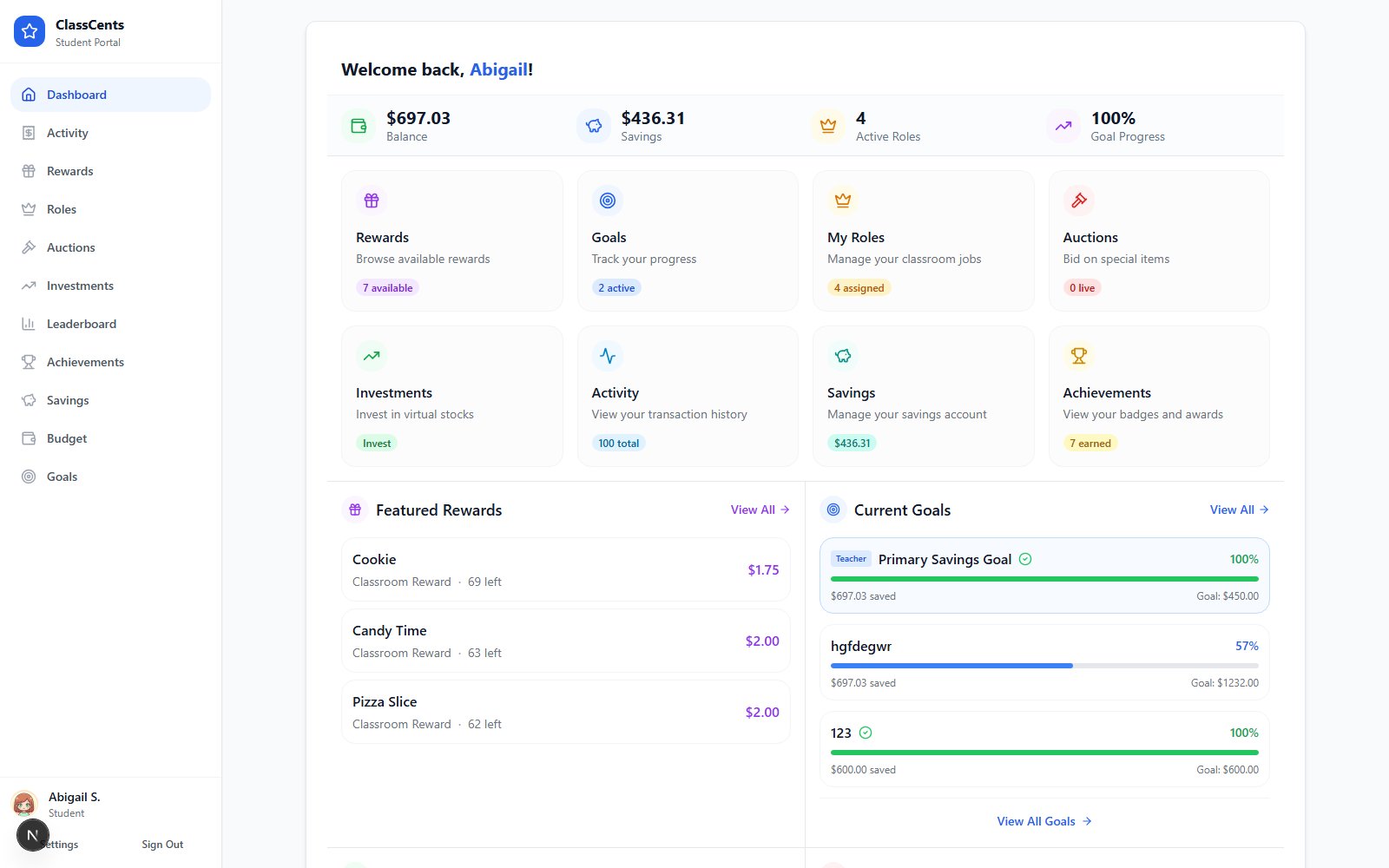
Students access their own personal dashboard to view their balance, shop for rewards, participate in auctions, and track their progress - all without needing a password!
 ## Access Methods
There are two ways students can sign in — both passwordless. Each student has a unique **QR code** and a **PIN code**.
**Easiest for K-8 students**
Open the classroom → **QR Codes** tab → **Print Cards** sub-tab → select students → click **Print Cards**. Each card shows the student's name, QR code, and PIN.
Hand out the printed cards. Students keep them in a folder, planner, or laminated.
Use a phone, tablet, or Chromebook camera to scan the QR code.
The browser opens directly into that student's dashboard.
**Best for shared classroom devices**
Students go to your classroom's student login URL on a shared device.
Students select themselves from the class roster.
They type the PIN printed on their card to sign in.
**For bookmarking on personal devices**
Each student has a unique dashboard URL:
```
https://classcents.com/student/dashboard/[nano_id]
```
The nano ID is a cryptographically random identifier — not guessable, and treated like a credential. Students can bookmark this on their device for one-tap access.
## What Students Can See
* Total currency available
* Recent transactions
* Earning history
* Savings progress toward goals
* Browse available rewards
* See prices and descriptions
* Purchase rewards directly
* View purchase history
* See current auctions
* Place and manage bids
* View auction history
* Track wins and losses
* Earned badges display
* Progress toward next badges
* Total achievements count
* Badge showcase
* Current job assignments
* Payment schedule
* Apply for available jobs
* Job history
* Class ranking (if enabled)
* Top earners
* Achievement leaders
* Friendly competition
## Student Dashboard Features
### Purchasing Rewards
Student views available rewards and prices
Click on desired reward to see full details
Click **Buy Now** - amount is deducted immediately
Dashboard shows "Pending" until teacher delivers the reward
Students can only purchase if they have sufficient balance - the system prevents overdrafts automatically unless teacher configured otherwise.
### Bidding in Auctions
All current auctions shown with time remaining
* Enter amount (must be higher than current bid)
* Funds are reserved but not yet deducted
* Can place multiple bids on different auctions
* See if outbid (funds released)
* Place new higher bid if desired
* Wait for auction to end
If won, currency deducted and reward marked for pickup
### Setting Personal Goals
Students can set savings goals:
1. Enter goal name (e.g., "Save for Homework Pass")
2. Set target amount
3. Dashboard shows progress bar toward goal
4. Motivates delayed gratification
## Mobile-Friendly Design
The student dashboard is fully responsive:
* **Phones**: Clean single-column layout
* **Tablets**: Two-column for shopping
* **Chromebooks**: Full dashboard experience
* **Desktop**: Large, easy-to-read displays
Works great on any device - from parent's phone to classroom Chromebook!
## Privacy & Security
* Their own balance and transaction history
* Available rewards and auctions
* Their earned badges
* Their job assignments
* Classroom leaderboard (if enabled)
* Other students' balances
* Other students' transaction details
* Teacher controls and settings
* Admin features
* Other classrooms' data
QR code system is secure because:
* Unique nano IDs are cryptographically generated
* URLs not easily guessable
* Can regenerate codes if compromised
* Students can't access other accounts
## Teacher Controls
Classroom-wide controls available to teachers:
* **Refresh Access** (QR Codes tab) — generates a new QR + PIN for selected students. Old printed cards stop working immediately.
* **Investments / Market** (Settings → Classroom Settings → Investments) — toggle the Investments tab on or off per classroom.
* **Bills** (Classroom → Expenses) — enable or disable bill assignments per classroom.
* **Payment Schedule** (Settings → Classroom Settings → Payment Schedule) — control when job payments and bill deductions process.
## Common Questions
**Yes!** Students can access their dashboard from any device, anywhere with internet.
This is great for:
* Showing parents their progress
* Shopping for rewards at home
* Checking balance before school
* Building excitement outside classroom
**Easy fix**:
1. Open the classroom's **QR Codes** tab
2. Select the student and click **Refresh Access**
3. A new QR code and PIN are generated; the old card stops working
4. Print and hand out the new card
5. All balances, badges, and history are preserved
**No!** Students have read-only access to their financial data. Only teachers can award or deduct currency through the teacher dashboard.
**Yes!** The dashboard is designed for K-8:
* No personal information displayed
* No external links or advertisements
* Age-appropriate interface
* Teacher-controlled access
## Troubleshooting Access Issues
**Try**:
1. Ensure good lighting for camera scan
2. Hold camera steady and at proper distance
3. Try different QR code scanning app
4. Regenerate the QR code if damaged
**Solution**: Refresh the page
Data updates in real-time, but browser may cache. Click refresh or F5.
**Check**:
1. Student has sufficient balance
2. Reward is marked as available
3. Shop feature is enabled by teacher
4. Reward hasn't reached quantity limit
## Related Topics
Detailed QR code setup and management
How students earn and use currency
## Access Methods
There are two ways students can sign in — both passwordless. Each student has a unique **QR code** and a **PIN code**.
**Easiest for K-8 students**
Open the classroom → **QR Codes** tab → **Print Cards** sub-tab → select students → click **Print Cards**. Each card shows the student's name, QR code, and PIN.
Hand out the printed cards. Students keep them in a folder, planner, or laminated.
Use a phone, tablet, or Chromebook camera to scan the QR code.
The browser opens directly into that student's dashboard.
**Best for shared classroom devices**
Students go to your classroom's student login URL on a shared device.
Students select themselves from the class roster.
They type the PIN printed on their card to sign in.
**For bookmarking on personal devices**
Each student has a unique dashboard URL:
```
https://classcents.com/student/dashboard/[nano_id]
```
The nano ID is a cryptographically random identifier — not guessable, and treated like a credential. Students can bookmark this on their device for one-tap access.
## What Students Can See
* Total currency available
* Recent transactions
* Earning history
* Savings progress toward goals
* Browse available rewards
* See prices and descriptions
* Purchase rewards directly
* View purchase history
* See current auctions
* Place and manage bids
* View auction history
* Track wins and losses
* Earned badges display
* Progress toward next badges
* Total achievements count
* Badge showcase
* Current job assignments
* Payment schedule
* Apply for available jobs
* Job history
* Class ranking (if enabled)
* Top earners
* Achievement leaders
* Friendly competition
## Student Dashboard Features
### Purchasing Rewards
Student views available rewards and prices
Click on desired reward to see full details
Click **Buy Now** - amount is deducted immediately
Dashboard shows "Pending" until teacher delivers the reward
Students can only purchase if they have sufficient balance - the system prevents overdrafts automatically unless teacher configured otherwise.
### Bidding in Auctions
All current auctions shown with time remaining
* Enter amount (must be higher than current bid)
* Funds are reserved but not yet deducted
* Can place multiple bids on different auctions
* See if outbid (funds released)
* Place new higher bid if desired
* Wait for auction to end
If won, currency deducted and reward marked for pickup
### Setting Personal Goals
Students can set savings goals:
1. Enter goal name (e.g., "Save for Homework Pass")
2. Set target amount
3. Dashboard shows progress bar toward goal
4. Motivates delayed gratification
## Mobile-Friendly Design
The student dashboard is fully responsive:
* **Phones**: Clean single-column layout
* **Tablets**: Two-column for shopping
* **Chromebooks**: Full dashboard experience
* **Desktop**: Large, easy-to-read displays
Works great on any device - from parent's phone to classroom Chromebook!
## Privacy & Security
* Their own balance and transaction history
* Available rewards and auctions
* Their earned badges
* Their job assignments
* Classroom leaderboard (if enabled)
* Other students' balances
* Other students' transaction details
* Teacher controls and settings
* Admin features
* Other classrooms' data
QR code system is secure because:
* Unique nano IDs are cryptographically generated
* URLs not easily guessable
* Can regenerate codes if compromised
* Students can't access other accounts
## Teacher Controls
Classroom-wide controls available to teachers:
* **Refresh Access** (QR Codes tab) — generates a new QR + PIN for selected students. Old printed cards stop working immediately.
* **Investments / Market** (Settings → Classroom Settings → Investments) — toggle the Investments tab on or off per classroom.
* **Bills** (Classroom → Expenses) — enable or disable bill assignments per classroom.
* **Payment Schedule** (Settings → Classroom Settings → Payment Schedule) — control when job payments and bill deductions process.
## Common Questions
**Yes!** Students can access their dashboard from any device, anywhere with internet.
This is great for:
* Showing parents their progress
* Shopping for rewards at home
* Checking balance before school
* Building excitement outside classroom
**Easy fix**:
1. Open the classroom's **QR Codes** tab
2. Select the student and click **Refresh Access**
3. A new QR code and PIN are generated; the old card stops working
4. Print and hand out the new card
5. All balances, badges, and history are preserved
**No!** Students have read-only access to their financial data. Only teachers can award or deduct currency through the teacher dashboard.
**Yes!** The dashboard is designed for K-8:
* No personal information displayed
* No external links or advertisements
* Age-appropriate interface
* Teacher-controlled access
## Troubleshooting Access Issues
**Try**:
1. Ensure good lighting for camera scan
2. Hold camera steady and at proper distance
3. Try different QR code scanning app
4. Regenerate the QR code if damaged
**Solution**: Refresh the page
Data updates in real-time, but browser may cache. Click refresh or F5.
**Check**:
1. Student has sufficient balance
2. Reward is marked as available
3. Shop feature is enabled by teacher
4. Reward hasn't reached quantity limit
## Related Topics
Detailed QR code setup and management
How students earn and use currency