> ## Documentation Index
> Fetch the complete documentation index at: https://help.classcents.com/llms.txt
> Use this file to discover all available pages before exploring further.
# Transaction Tracking
> Award points, deduct currency, and track all classroom economy activity
## Overview
Every point earned or spent in ClassCents is tracked through the transaction system. This provides complete visibility into student behavior patterns, earning trends, and spending habits.
 ## Creating Transactions
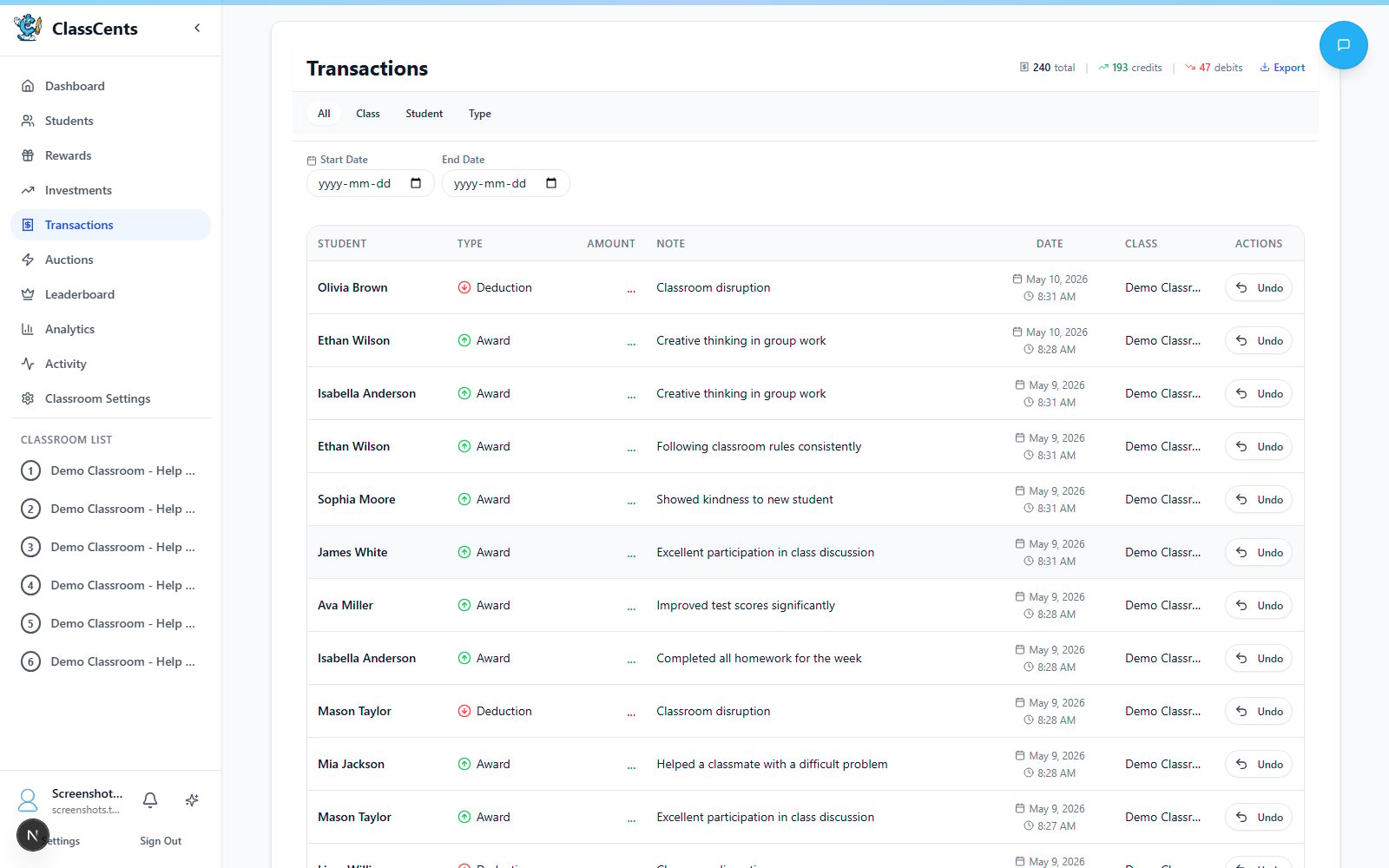
Transactions are created from the **classroom workspace** — not a separate "Transactions" form. The Transactions page is a read-only ledger.
### Award the Whole Class
From your classroom workspace, click **Award All Students** in the action toolbar.
Tap a **Quick Amount** button or type a custom amount. Quick amounts come from your [Quick Buttons settings](/features/transactions#quick-buttons).
Use the **Academic / Social / Behavioral** template tabs to insert a preset reason, or type your own in the **Reason for Award** field.
Confirm — every student in the class receives the same amount with the same reason.
### Award an Individual Student
Click any student card in the workspace.
* **Quick action buttons** apply preset positive amounts (and negative ones for deductions) in one click
* **Give Points** opens a dialog with a list of preset reasons ("Excellent participation", "Helping classmates", etc.) plus a **Custom reason** field and **Amount**
The student's balance updates instantly and the transaction appears in the ledger.
### Deductions
There is no separate "Deduct Points" page. Deductions happen through:
* **Negative Quick Buttons** (e.g., `-1`, `-5`) on a student card
* A **negative amount** entered in the **Give Points** dialog
* Automated systems (bills, auction bids, reward redemptions)
Use manual deductions sparingly. The system works best when focused on positive reinforcement. Reserve deductions for clear rule violations or agreed-upon fines.
## Transaction Categories & Templates
ClassCents lets you create your own transaction categories and reusable templates that show up as quick-pick buttons in the Give Points dialog.
Navigate to **Settings** → **Classroom Settings** → **Transaction Categories** to manage them.
### Category Types
Every category you create has one of three types:
Awards **and** deductions — e.g., "Homework" (complete = award, missing = deduct)
Positive transactions — e.g., "Helping others", "Extra credit"
Negative transactions — e.g., "Late work", "Missing supplies"
### Templates
Within each category you can add **templates** — short labels with a description that pre-fill the reason field on a transaction.
Click **Add Category** and enter a name, type, and optional description.
Inside any category, click **Add Template** and enter a label ("Helped a friend") and description.
Templates appear as quick-pick buttons in the Award All Students and Give Points dialogs so you can log behavior in one click.
Use templates consistently to generate meaningful analytics about what earns students the most points.
## Bulk Transactions
The **Award All Students** dialog (described above) is the fastest way to award the whole class. For sub-groups, use **Student Groups** (Pro) or open a group's view and award only its members.
Bulk awards create one transaction record per student so analytics, paystubs, and student transaction history stay accurate.
## Transaction History
### Viewing the Ledger
Open the **Transactions** page from your classroom workspace to see the full ledger.
* **Classroom view**: Every transaction across every student
* **Student view**: Open a student to see their personal transaction history
* **Date filters**: Filter by day, week, month, or custom range
* **Source filters**: View only specific transaction types (manual award, job payout, reward redemption, bill payment, badge reward, auction, investment transfer)
* **Search**: Find transactions by reason text
### Transaction Record Fields
Each transaction record includes:
Exact date and time of the transaction
Which student was involved
Positive for awards, negative for deductions / spending
Why the transaction occurred
System category — e.g., `manual`, `role_payout`, `reward_redemption`, `bill_payment`, `badge_reward`, `auction`, `investment_transfer`
Student's balance after this transaction
## Quick Buttons
Quick Buttons are one-tap amount shortcuts that appear on every student card and inside the Award All dialog.
Go to **Settings** → **Classroom Settings** → **Quick Buttons**.
Type an amount and click **Add**. Use **positive numbers** for awards and **negative numbers** for deductions. You can have up to **12 quick buttons**.
Click **Reset** to restore defaults (`+1, +5, +10, -1, -5, -10`) or **Apply Changes** to save.
Quick buttons save tons of time during class — click a student, click `+10`, done. No form to fill out.
## Transaction Analytics
View insights about your classroom economy:
* **Total Volume**: How much currency is circulating
* **Earning Trends**: When students earn most
* **Category Breakdown**: Which activities earn the most
* **Individual Patterns**: Identify high earners and those who may need support
* **Class Averages**: Compare students to class mean
[Learn more about analytics →](/advanced/analytics)
## Related Topics
Understand how the point system works
Deep dive into transaction analytics
## Creating Transactions
Transactions are created from the **classroom workspace** — not a separate "Transactions" form. The Transactions page is a read-only ledger.
### Award the Whole Class
From your classroom workspace, click **Award All Students** in the action toolbar.
Tap a **Quick Amount** button or type a custom amount. Quick amounts come from your [Quick Buttons settings](/features/transactions#quick-buttons).
Use the **Academic / Social / Behavioral** template tabs to insert a preset reason, or type your own in the **Reason for Award** field.
Confirm — every student in the class receives the same amount with the same reason.
### Award an Individual Student
Click any student card in the workspace.
* **Quick action buttons** apply preset positive amounts (and negative ones for deductions) in one click
* **Give Points** opens a dialog with a list of preset reasons ("Excellent participation", "Helping classmates", etc.) plus a **Custom reason** field and **Amount**
The student's balance updates instantly and the transaction appears in the ledger.
### Deductions
There is no separate "Deduct Points" page. Deductions happen through:
* **Negative Quick Buttons** (e.g., `-1`, `-5`) on a student card
* A **negative amount** entered in the **Give Points** dialog
* Automated systems (bills, auction bids, reward redemptions)
Use manual deductions sparingly. The system works best when focused on positive reinforcement. Reserve deductions for clear rule violations or agreed-upon fines.
## Transaction Categories & Templates
ClassCents lets you create your own transaction categories and reusable templates that show up as quick-pick buttons in the Give Points dialog.
Navigate to **Settings** → **Classroom Settings** → **Transaction Categories** to manage them.
### Category Types
Every category you create has one of three types:
Awards **and** deductions — e.g., "Homework" (complete = award, missing = deduct)
Positive transactions — e.g., "Helping others", "Extra credit"
Negative transactions — e.g., "Late work", "Missing supplies"
### Templates
Within each category you can add **templates** — short labels with a description that pre-fill the reason field on a transaction.
Click **Add Category** and enter a name, type, and optional description.
Inside any category, click **Add Template** and enter a label ("Helped a friend") and description.
Templates appear as quick-pick buttons in the Award All Students and Give Points dialogs so you can log behavior in one click.
Use templates consistently to generate meaningful analytics about what earns students the most points.
## Bulk Transactions
The **Award All Students** dialog (described above) is the fastest way to award the whole class. For sub-groups, use **Student Groups** (Pro) or open a group's view and award only its members.
Bulk awards create one transaction record per student so analytics, paystubs, and student transaction history stay accurate.
## Transaction History
### Viewing the Ledger
Open the **Transactions** page from your classroom workspace to see the full ledger.
* **Classroom view**: Every transaction across every student
* **Student view**: Open a student to see their personal transaction history
* **Date filters**: Filter by day, week, month, or custom range
* **Source filters**: View only specific transaction types (manual award, job payout, reward redemption, bill payment, badge reward, auction, investment transfer)
* **Search**: Find transactions by reason text
### Transaction Record Fields
Each transaction record includes:
Exact date and time of the transaction
Which student was involved
Positive for awards, negative for deductions / spending
Why the transaction occurred
System category — e.g., `manual`, `role_payout`, `reward_redemption`, `bill_payment`, `badge_reward`, `auction`, `investment_transfer`
Student's balance after this transaction
## Quick Buttons
Quick Buttons are one-tap amount shortcuts that appear on every student card and inside the Award All dialog.
Go to **Settings** → **Classroom Settings** → **Quick Buttons**.
Type an amount and click **Add**. Use **positive numbers** for awards and **negative numbers** for deductions. You can have up to **12 quick buttons**.
Click **Reset** to restore defaults (`+1, +5, +10, -1, -5, -10`) or **Apply Changes** to save.
Quick buttons save tons of time during class — click a student, click `+10`, done. No form to fill out.
## Transaction Analytics
View insights about your classroom economy:
* **Total Volume**: How much currency is circulating
* **Earning Trends**: When students earn most
* **Category Breakdown**: Which activities earn the most
* **Individual Patterns**: Identify high earners and those who may need support
* **Class Averages**: Compare students to class mean
[Learn more about analytics →](/advanced/analytics)
## Related Topics
Understand how the point system works
Deep dive into transaction analytics