> ## Documentation Index
> Fetch the complete documentation index at: https://help.classcents.com/llms.txt
> Use this file to discover all available pages before exploring further.
# Rewards & Incentives
> Create engaging rewards that motivate students to earn and save
## Overview
The rewards system is the heart of student motivation in ClassCents. It provides tangible goals for students to work toward and creates excitement around positive behavior and academic achievement.
 ## Types of Rewards
Tangible items students receive:
* School supplies (pencils, stickers, notebooks)
* Healthy snacks and treats
* Small toys (fidget toys, keychains)
* Age-appropriate books
* Art supplies
Special classroom privileges:
* Classroom jobs (line leader, helper)
* Special seating (bean bag, teacher's chair)
* Extra technology time
* Free time and extended recess
* Homework passes
Special activities and experiences:
* Special activities (art, music time)
* Lunch with teacher
* Show and tell opportunities
* Outdoor classroom time
* Class game selection
Public acknowledgment and achievement:
* Achievement certificates
* Digital or physical badges
* Student of the week
* Positive parent communication
* Display on classroom honor board
## Creating a Reward
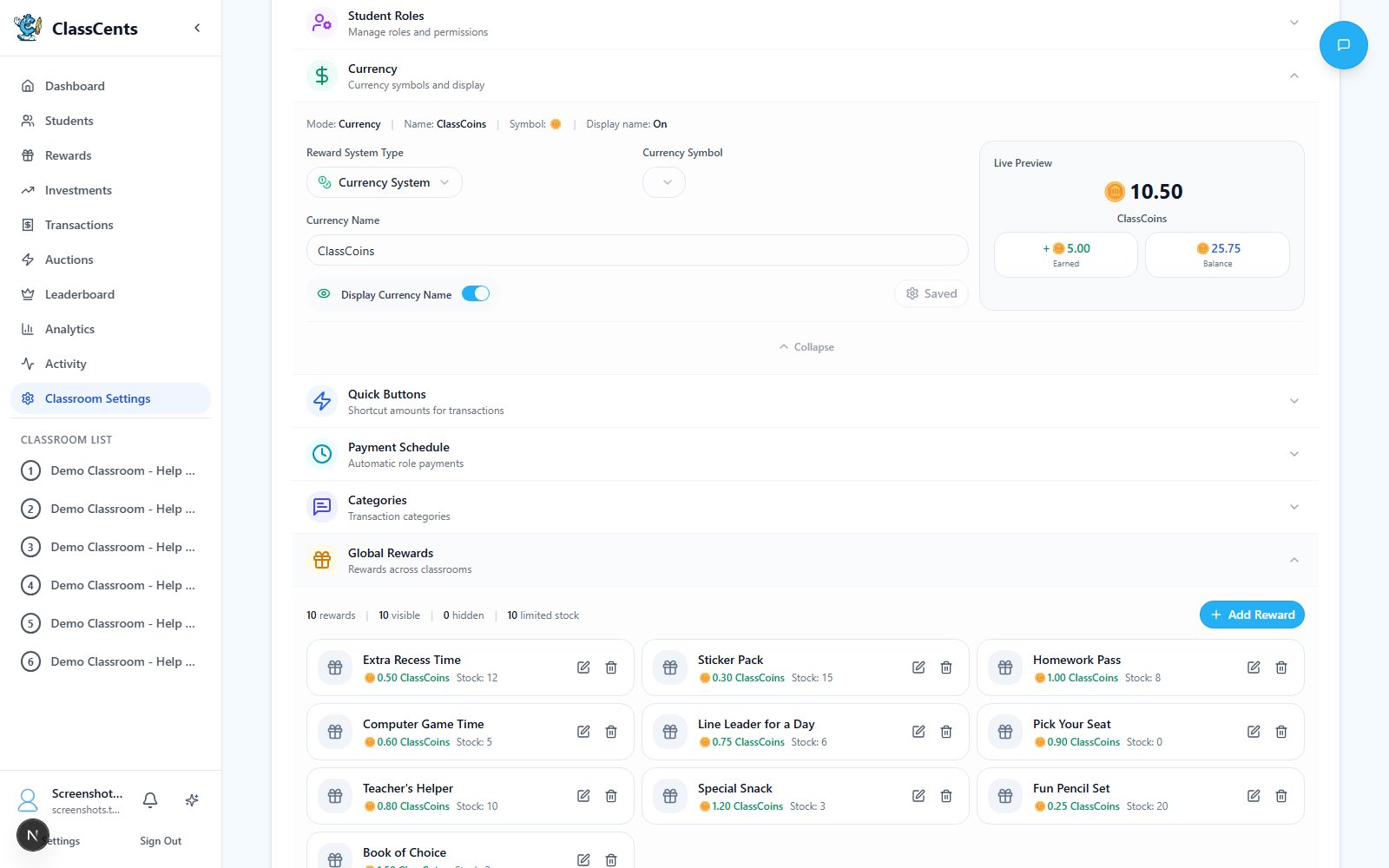
Go to **Settings** → **Classroom Settings** → **Global Rewards**.
Click the dashed **Add New Reward** card to open the **Create New Global Reward** dialog.
* **Reward Title**: Clear, appealing name (e.g., "Homework Pass", "Extra Recess")
* **Cost**: Price in your classroom currency
* **Stock**: How many copies are available before the reward sells out
* **Select Reward Icon**: Pick from the icon library (categories include awards, food, school, etc.) or **Upload Custom Image** (optional)
* **Make Reward Visible**: Students can see it in the shop
* **Auctionable**: Can be added to auction events
* **Redeemable**: Students can redeem it directly with their balance
The reward is immediately available across all of your classrooms based on the toggles you selected.
Global Rewards are **shared across every classroom** under your account. Edit, restock, or hide a reward once and it updates everywhere.
## Pricing Strategy
Set prices strategically to encourage both spending and saving:
**Purpose**: Immediate gratification for quick wins
**Examples**:
* Pencil or eraser
* Sticker or stamp
* 5 minutes free time
* Candy or small snack
**Strategy**: These keep less-engaged students interested and provide quick dopamine hits
**Purpose**: Weekly savings goals
**Examples**:
* Homework pass
* Choose your seat for the day
* Lunch with teacher
* Extra computer time
**Strategy**: Most popular tier - requires 1-2 weeks of consistent effort to afford
**Purpose**: Long-term savings and delayed gratification
**Examples**:
* Pizza party for group
* Special privilege for a week
* Technology device loan
* Major project choice
**Strategy**: Teaches patience and financial planning - students save for several weeks
**Purpose**: End-of-year jackpot goals
**Examples**:
* Field trip buddy selection
* Class party planning role
* Special recognition award
* Major physical prize
**Strategy**: Ultra-rare rewards that only most dedicated savers can afford
## Reward Availability Options
Each reward has two independent toggles that control where it appears:
When enabled, students can purchase this reward directly from their Rewards Shop at the posted price.
**Best for**:
* Common rewards
* Consistent availability
* Predictable pricing
* Students who save steadily
When enabled, this reward can be included in auction events where students bid competitively.
**Best for**:
* Limited quantity items
* High-value rewards
* Creating excitement
* Teaching market economics
You can enable **both** toggles on the same reward — it will appear in both the shop and in auctions, giving students flexibility in how they acquire it.
## Managing Inventory
Every reward has a required **Stock** value. Once it hits 0 the reward automatically disappears from the student shop.
Toggle **Make Reward Visible** off to temporarily hide a reward from students without deleting it. Useful for seasonal items or rewards you're restocking.
Click any reward card in **Global Rewards** to edit its title, cost, stock, image, or availability toggles.
Hide rewards you want to retire and add fresh ones each term to maintain excitement and novelty.
## Best Practices
**Variety is Key**: Offer rewards at multiple price points so all students have achievable goals
**Balance Privilege and Physical**: Mix tangible items with special privileges - not all rewards need to cost you money
**Student Input**: Survey students about what rewards they want - they'll work harder for rewards they actually desire
**Visual Appeal**: Use the icon picker or upload a custom image so each reward stands out in the shop
**Clear Titles**: Use specific reward titles ("15-min Free Time" beats "Free Time") so there's no disappointment
**Regular Refresh**: Rotate rewards seasonally to maintain excitement
## Reward Redemption Process
Rewards can be redeemed in two ways — by students directly, or by teachers on behalf of students.
Students purchase rewards from their dashboard Rewards Shop:
Students view available rewards with prices and stock on their dashboard
Click a reward to see full details and a balance breakdown
A confirmation modal shows their current balance, the cost, and their new balance after purchase. Click **Confirm Purchase** to proceed.
A success celebration appears with the message: *"Check with your teacher to collect your reward!"* The teacher is notified of the purchase.
Students can only purchase if they have sufficient balance and the reward is in stock. The system prevents overdrafts automatically.
Teachers can redeem rewards on behalf of students from the classroom view:
Navigate to your classroom and click **Redeem Rewards**
A table shows all students and available rewards. Find the student and the reward you want to give them.
Click the **Redeem** button at the intersection of the student and reward. The cost is deducted and stock is updated instantly.
Teacher direct redeem is great for distributing physical rewards during class or rewarding students who earned something in person.
## Common Mistakes to Avoid
**Pricing too high**: If no students can afford anything, they'll lose motivation. Ensure low-cost options exist.
**All or nothing**: Don't make all rewards premium-priced. Students need quick wins to stay engaged.
**Vague titles**: Generic titles lead to disappointment. Be specific about what students receive.
**Forgetting to restock**: An empty rewards catalog kills motivation. Watch your stock counts and refresh regularly.
## Related Topics
Learn about earning and managing classroom currency
Host competitive bidding for special rewards
## Types of Rewards
Tangible items students receive:
* School supplies (pencils, stickers, notebooks)
* Healthy snacks and treats
* Small toys (fidget toys, keychains)
* Age-appropriate books
* Art supplies
Special classroom privileges:
* Classroom jobs (line leader, helper)
* Special seating (bean bag, teacher's chair)
* Extra technology time
* Free time and extended recess
* Homework passes
Special activities and experiences:
* Special activities (art, music time)
* Lunch with teacher
* Show and tell opportunities
* Outdoor classroom time
* Class game selection
Public acknowledgment and achievement:
* Achievement certificates
* Digital or physical badges
* Student of the week
* Positive parent communication
* Display on classroom honor board
## Creating a Reward
Go to **Settings** → **Classroom Settings** → **Global Rewards**.
Click the dashed **Add New Reward** card to open the **Create New Global Reward** dialog.
* **Reward Title**: Clear, appealing name (e.g., "Homework Pass", "Extra Recess")
* **Cost**: Price in your classroom currency
* **Stock**: How many copies are available before the reward sells out
* **Select Reward Icon**: Pick from the icon library (categories include awards, food, school, etc.) or **Upload Custom Image** (optional)
* **Make Reward Visible**: Students can see it in the shop
* **Auctionable**: Can be added to auction events
* **Redeemable**: Students can redeem it directly with their balance
The reward is immediately available across all of your classrooms based on the toggles you selected.
Global Rewards are **shared across every classroom** under your account. Edit, restock, or hide a reward once and it updates everywhere.
## Pricing Strategy
Set prices strategically to encourage both spending and saving:
**Purpose**: Immediate gratification for quick wins
**Examples**:
* Pencil or eraser
* Sticker or stamp
* 5 minutes free time
* Candy or small snack
**Strategy**: These keep less-engaged students interested and provide quick dopamine hits
**Purpose**: Weekly savings goals
**Examples**:
* Homework pass
* Choose your seat for the day
* Lunch with teacher
* Extra computer time
**Strategy**: Most popular tier - requires 1-2 weeks of consistent effort to afford
**Purpose**: Long-term savings and delayed gratification
**Examples**:
* Pizza party for group
* Special privilege for a week
* Technology device loan
* Major project choice
**Strategy**: Teaches patience and financial planning - students save for several weeks
**Purpose**: End-of-year jackpot goals
**Examples**:
* Field trip buddy selection
* Class party planning role
* Special recognition award
* Major physical prize
**Strategy**: Ultra-rare rewards that only most dedicated savers can afford
## Reward Availability Options
Each reward has two independent toggles that control where it appears:
When enabled, students can purchase this reward directly from their Rewards Shop at the posted price.
**Best for**:
* Common rewards
* Consistent availability
* Predictable pricing
* Students who save steadily
When enabled, this reward can be included in auction events where students bid competitively.
**Best for**:
* Limited quantity items
* High-value rewards
* Creating excitement
* Teaching market economics
You can enable **both** toggles on the same reward — it will appear in both the shop and in auctions, giving students flexibility in how they acquire it.
## Managing Inventory
Every reward has a required **Stock** value. Once it hits 0 the reward automatically disappears from the student shop.
Toggle **Make Reward Visible** off to temporarily hide a reward from students without deleting it. Useful for seasonal items or rewards you're restocking.
Click any reward card in **Global Rewards** to edit its title, cost, stock, image, or availability toggles.
Hide rewards you want to retire and add fresh ones each term to maintain excitement and novelty.
## Best Practices
**Variety is Key**: Offer rewards at multiple price points so all students have achievable goals
**Balance Privilege and Physical**: Mix tangible items with special privileges - not all rewards need to cost you money
**Student Input**: Survey students about what rewards they want - they'll work harder for rewards they actually desire
**Visual Appeal**: Use the icon picker or upload a custom image so each reward stands out in the shop
**Clear Titles**: Use specific reward titles ("15-min Free Time" beats "Free Time") so there's no disappointment
**Regular Refresh**: Rotate rewards seasonally to maintain excitement
## Reward Redemption Process
Rewards can be redeemed in two ways — by students directly, or by teachers on behalf of students.
Students purchase rewards from their dashboard Rewards Shop:
Students view available rewards with prices and stock on their dashboard
Click a reward to see full details and a balance breakdown
A confirmation modal shows their current balance, the cost, and their new balance after purchase. Click **Confirm Purchase** to proceed.
A success celebration appears with the message: *"Check with your teacher to collect your reward!"* The teacher is notified of the purchase.
Students can only purchase if they have sufficient balance and the reward is in stock. The system prevents overdrafts automatically.
Teachers can redeem rewards on behalf of students from the classroom view:
Navigate to your classroom and click **Redeem Rewards**
A table shows all students and available rewards. Find the student and the reward you want to give them.
Click the **Redeem** button at the intersection of the student and reward. The cost is deducted and stock is updated instantly.
Teacher direct redeem is great for distributing physical rewards during class or rewarding students who earned something in person.
## Common Mistakes to Avoid
**Pricing too high**: If no students can afford anything, they'll lose motivation. Ensure low-cost options exist.
**All or nothing**: Don't make all rewards premium-priced. Students need quick wins to stay engaged.
**Vague titles**: Generic titles lead to disappointment. Be specific about what students receive.
**Forgetting to restock**: An empty rewards catalog kills motivation. Watch your stock counts and refresh regularly.
## Related Topics
Learn about earning and managing classroom currency
Host competitive bidding for special rewards