> ## Documentation Index
> Fetch the complete documentation index at: https://help.classcents.com/llms.txt
> Use this file to discover all available pages before exploring further.
# Student Groups
> Organize students into named groups within a classroom
**Groups** let you split a classroom into smaller named, color-coded teams — useful for table groups, cooperative projects, reading levels, or class teams.
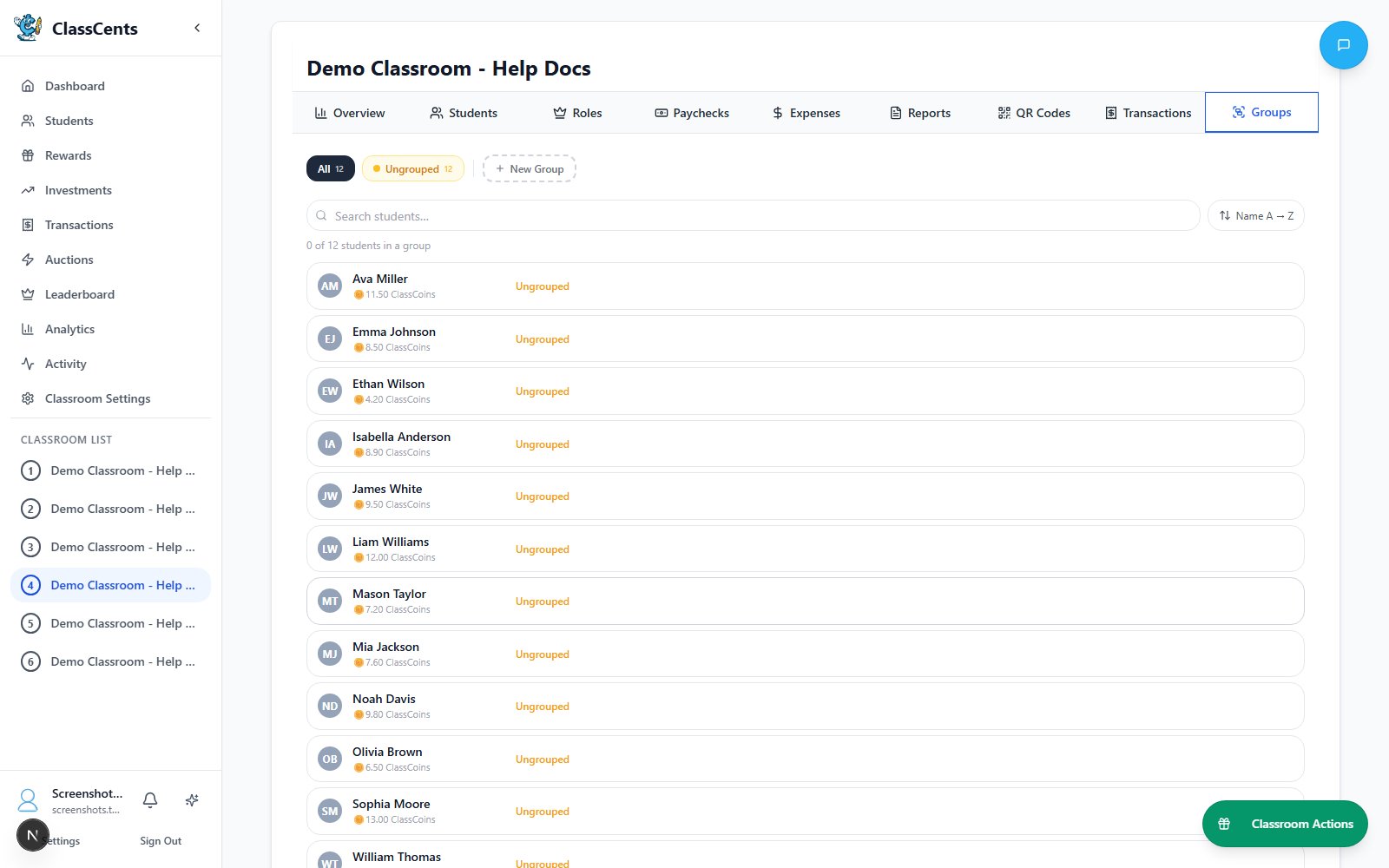 Open from any classroom dashboard: **Groups** tab. URL: `/dashboard/classroom/[id]/groups`.
## What a Group Has
| Field | Notes |
| --------------- | ---------------------------------------------------- |
| **Name** | Required (e.g., "Red Team", "Table 3") |
| **Color** | Pick a preset or use the custom hex picker |
| **Goal amount** | Optional team savings target shown on the group card |
| **Members** | Any students currently assigned to this group |
A student can only be in **one group at a time** within a classroom.
## Creating a Group
From the classroom dashboard, click the **Groups** tab.
Fill in the **Group Name**, choose a **Color**, and optionally set a **Goal Amount**.
Select students from the **Ungrouped Students** list to assign right away. You can also assign more later.
Click **Create** to save the group.
## Managing Members
* **Assign**: Select students in the **Ungrouped Students** card and use the bulk action to assign them.
* **Move**: Select members in one group and use the move action to send them to a different group.
* **Unassign**: Use **Unassign** to return students to the ungrouped pool.
* **Delete**: Deleting a group **unassigns all its students** (it does not delete the students themselves).
Deleting a group is permanent. The students survive — they just become ungrouped — but the group's name, color, and goal amount are gone.
## Common Uses
Mirror your seating chart so you can quickly award points to a whole table.
Group by skill band for differentiated tasks.
Create temporary groups for a unit and delete them when the project ends.
Run a long-running classroom houses competition with goal amounts as the house treasury.
Open from any classroom dashboard: **Groups** tab. URL: `/dashboard/classroom/[id]/groups`.
## What a Group Has
| Field | Notes |
| --------------- | ---------------------------------------------------- |
| **Name** | Required (e.g., "Red Team", "Table 3") |
| **Color** | Pick a preset or use the custom hex picker |
| **Goal amount** | Optional team savings target shown on the group card |
| **Members** | Any students currently assigned to this group |
A student can only be in **one group at a time** within a classroom.
## Creating a Group
From the classroom dashboard, click the **Groups** tab.
Fill in the **Group Name**, choose a **Color**, and optionally set a **Goal Amount**.
Select students from the **Ungrouped Students** list to assign right away. You can also assign more later.
Click **Create** to save the group.
## Managing Members
* **Assign**: Select students in the **Ungrouped Students** card and use the bulk action to assign them.
* **Move**: Select members in one group and use the move action to send them to a different group.
* **Unassign**: Use **Unassign** to return students to the ungrouped pool.
* **Delete**: Deleting a group **unassigns all its students** (it does not delete the students themselves).
Deleting a group is permanent. The students survive — they just become ungrouped — but the group's name, color, and goal amount are gone.
## Common Uses
Mirror your seating chart so you can quickly award points to a whole table.
Group by skill band for differentiated tasks.
Create temporary groups for a unit and delete them when the project ends.
Run a long-running classroom houses competition with goal amounts as the house treasury.