> ## Documentation Index
> Fetch the complete documentation index at: https://help.classcents.com/llms.txt
> Use this file to discover all available pages before exploring further.
# Currency & Points System
> Learn how to set up and manage your classroom virtual currency
## Understanding the Currency System
ClassCents uses a virtual currency system that mirrors real-world economics to teach students about money management, saving, and making thoughtful spending decisions.
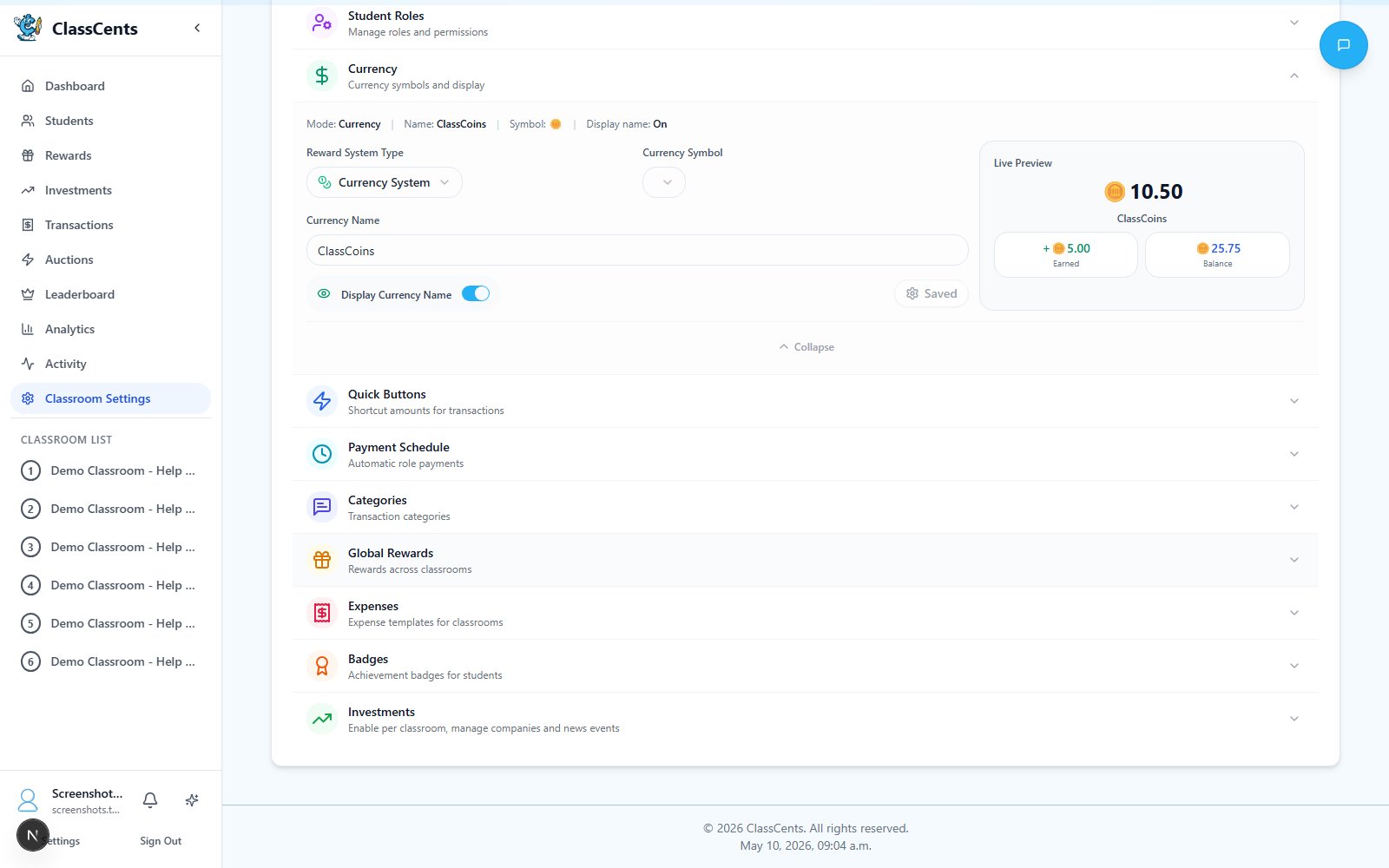 ## Currency Configuration
Navigate to **Settings** → **Classroom Settings** → **Currency** (page titled **Classroom Currency**) to configure:
Choose between **Points System** or **Currency System**
* **Points System**: Simple whole numbers (e.g., 100) — great for younger students
* **Currency System**: Dollar-style format with decimals (e.g., \$10.50) — great for teaching financial literacy
*(Currency System mode only)* Choose a symbol from the dropdown.
Options: `$`, `£`, `€`, `¥`, `₹`, `₱`, `₩`, `₦`, `฿`, `₫`, `₴`
Customize your classroom currency name.
Examples: "ClassCash", "EduCoins", "Eagle Bucks", "Star Points"
Toggle whether the currency name is displayed alongside balances throughout the app.
A **Live Preview** on the right shows exactly how balances will display. Click **Apply Changes** to save.
**Starting Balance** is configured per classroom when you create or edit a classroom, not in the currency settings.
Each new student added to that classroom will automatically receive the starting balance.
This only applies when a student is first created — assigning an existing student to an additional classroom does not grant a second starting balance.
## How Students Earn Currency
* Homework completion
* Test scores and bonuses
* Class participation
* Project work
* Improvement rewards
* Following classroom rules
* Helping classmates
* Leadership and initiative
* Responsibility completion
* Positive attitude
* Assigned paid jobs
* Automatic weekly/daily payouts
* Performance bonuses
* Special project payments
* Milestone completions
* Bonus point rewards
* Progressive tiers
* Special recognition
## Best Practices
Standardize your point values so students understand the system:
* Small tasks: 5-10 points
* Medium achievements: 25-50 points
* Major accomplishments: 100+ points
Students should always know how to earn more:
* Post earning opportunities on classroom board
* Explain point values before activities
* Be transparent about why points are awarded
Recognition is most effective when immediate:
* Award points right after the positive behavior
* Students see their balance update in real-time
* Instant gratification reinforces the behavior
Every student should be able to earn:
* Don't make all earning academic-only
* Include behavior and effort-based rewards
* Vary difficulty levels so all students can succeed
## Currency Symbol Tips
**Using Dollar Signs (\$)**: Creates real-world connection and teaches money concepts. Great for teaching financial literacy alongside behavior management.
**Using Points**: Simpler for younger students and avoids confusion with real money. Works well for game-ified classrooms.
## Adjusting the Economy
Check your analytics to see if students are saving or spending too quickly
If students run out of money too fast, increase earning opportunities or reduce reward costs
If everyone has too much money, increase reward prices or reduce earning amounts slightly
Ask students what they think - they'll tell you if something feels unfair or too difficult
Make any adjustments slowly and communicate changes clearly to maintain student trust in the system.
## Related Topics
Create items students can purchase with their currency
Learn how to award and deduct points effectively
## Currency Configuration
Navigate to **Settings** → **Classroom Settings** → **Currency** (page titled **Classroom Currency**) to configure:
Choose between **Points System** or **Currency System**
* **Points System**: Simple whole numbers (e.g., 100) — great for younger students
* **Currency System**: Dollar-style format with decimals (e.g., \$10.50) — great for teaching financial literacy
*(Currency System mode only)* Choose a symbol from the dropdown.
Options: `$`, `£`, `€`, `¥`, `₹`, `₱`, `₩`, `₦`, `฿`, `₫`, `₴`
Customize your classroom currency name.
Examples: "ClassCash", "EduCoins", "Eagle Bucks", "Star Points"
Toggle whether the currency name is displayed alongside balances throughout the app.
A **Live Preview** on the right shows exactly how balances will display. Click **Apply Changes** to save.
**Starting Balance** is configured per classroom when you create or edit a classroom, not in the currency settings.
Each new student added to that classroom will automatically receive the starting balance.
This only applies when a student is first created — assigning an existing student to an additional classroom does not grant a second starting balance.
## How Students Earn Currency
* Homework completion
* Test scores and bonuses
* Class participation
* Project work
* Improvement rewards
* Following classroom rules
* Helping classmates
* Leadership and initiative
* Responsibility completion
* Positive attitude
* Assigned paid jobs
* Automatic weekly/daily payouts
* Performance bonuses
* Special project payments
* Milestone completions
* Bonus point rewards
* Progressive tiers
* Special recognition
## Best Practices
Standardize your point values so students understand the system:
* Small tasks: 5-10 points
* Medium achievements: 25-50 points
* Major accomplishments: 100+ points
Students should always know how to earn more:
* Post earning opportunities on classroom board
* Explain point values before activities
* Be transparent about why points are awarded
Recognition is most effective when immediate:
* Award points right after the positive behavior
* Students see their balance update in real-time
* Instant gratification reinforces the behavior
Every student should be able to earn:
* Don't make all earning academic-only
* Include behavior and effort-based rewards
* Vary difficulty levels so all students can succeed
## Currency Symbol Tips
**Using Dollar Signs (\$)**: Creates real-world connection and teaches money concepts. Great for teaching financial literacy alongside behavior management.
**Using Points**: Simpler for younger students and avoids confusion with real money. Works well for game-ified classrooms.
## Adjusting the Economy
Check your analytics to see if students are saving or spending too quickly
If students run out of money too fast, increase earning opportunities or reduce reward costs
If everyone has too much money, increase reward prices or reduce earning amounts slightly
Ask students what they think - they'll tell you if something feels unfair or too difficult
Make any adjustments slowly and communicate changes clearly to maintain student trust in the system.
## Related Topics
Create items students can purchase with their currency
Learn how to award and deduct points effectively