> ## Documentation Index
> Fetch the complete documentation index at: https://help.classcents.com/llms.txt
> Use this file to discover all available pages before exploring further.
# Transaction Categories
> Organize the reasons you award and deduct points into reusable categories and templates
**Transaction Categories** let you create reusable groupings of reasons (templates) for awarding and deducting points. They feed the dropdowns you see on the Award/Deduct flows and on Quick Buttons.
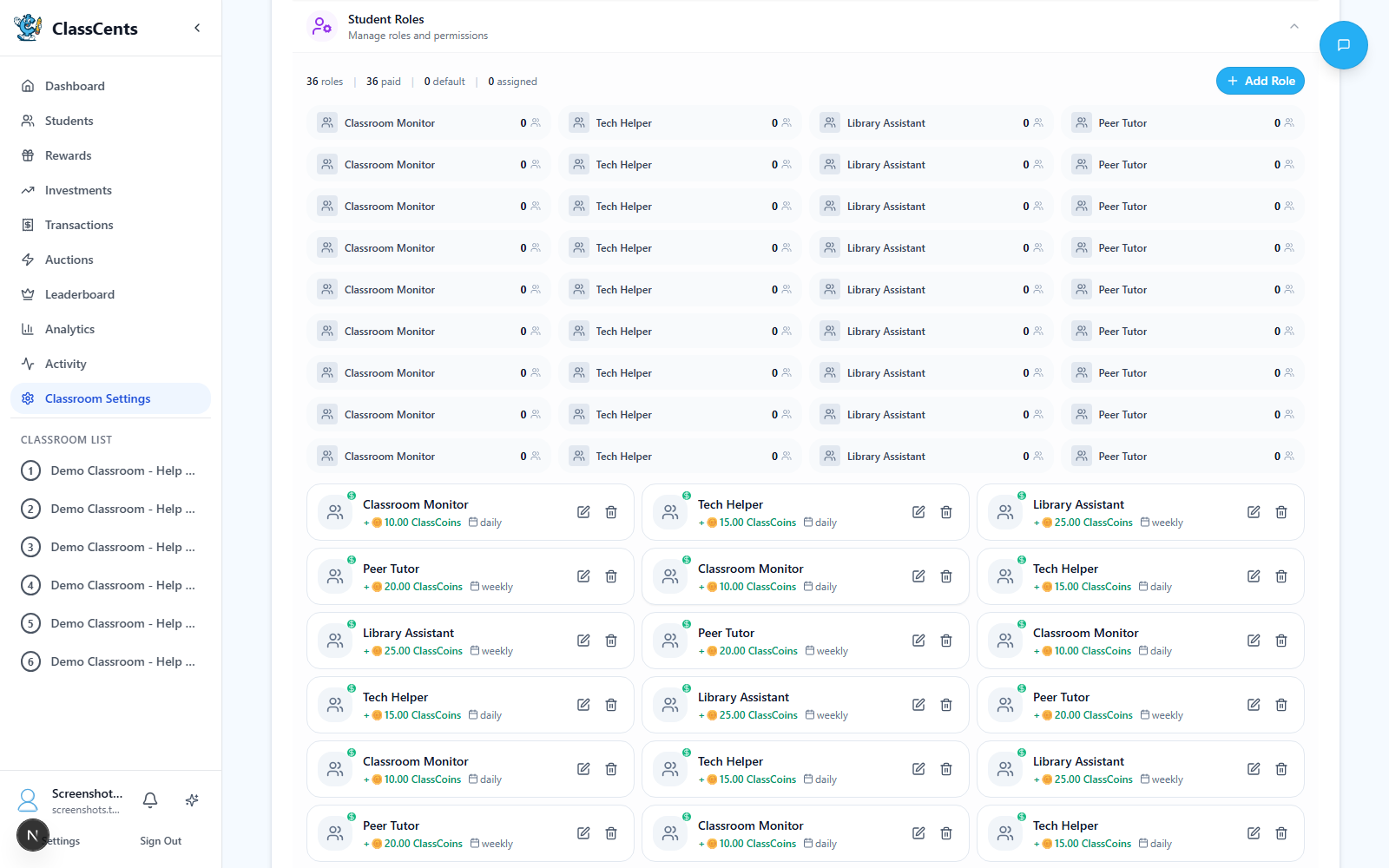 Open from **Settings** → **Classroom Settings** → **Transaction Categories**. URL: `/settings/classroom/transaction-categories`.
## Default Categories
ClassCents ships with three default categories so you have something to start with:
* **Academic** — homework completion, test performance, helping a peer with schoolwork
* **Social-Emotional** — kindness, teamwork, conflict resolution
* **Behavioral** — following directions, on-task behavior, classroom expectations
## Adding a Category
Top right of the Transaction Categories page.
Give the category a clear name and pick a color so it's easy to spot in dropdowns.
Each category holds a list of **templates** — the actual reasons you'll pick when awarding/deducting. Examples for Academic: *"Completed homework"*, *"Aced quiz"*, *"Brought materials to class"*.
Save the category. It now appears in the reason dropdowns wherever you award or deduct points.
## Restoring Defaults
If you've deleted the built-in categories or want them back, click **Restore Defaults** at the top of the page.
Restoring defaults **adds the three default categories back** but does **not** delete any custom categories you've created.
## How They're Used
* **Award/Deduct dialogs** — The reason dropdown shows your templates grouped by category.
* **Quick Buttons** — When configuring [Quick Buttons](/features/transactions#quick-buttons), you can attach a template so the button records a consistent reason.
* **Reports & filtering** — Reason notes saved with transactions make the [Activity Feed](/features/activity) and [Transactions page](/features/transactions) easier to scan.
Open from **Settings** → **Classroom Settings** → **Transaction Categories**. URL: `/settings/classroom/transaction-categories`.
## Default Categories
ClassCents ships with three default categories so you have something to start with:
* **Academic** — homework completion, test performance, helping a peer with schoolwork
* **Social-Emotional** — kindness, teamwork, conflict resolution
* **Behavioral** — following directions, on-task behavior, classroom expectations
## Adding a Category
Top right of the Transaction Categories page.
Give the category a clear name and pick a color so it's easy to spot in dropdowns.
Each category holds a list of **templates** — the actual reasons you'll pick when awarding/deducting. Examples for Academic: *"Completed homework"*, *"Aced quiz"*, *"Brought materials to class"*.
Save the category. It now appears in the reason dropdowns wherever you award or deduct points.
## Restoring Defaults
If you've deleted the built-in categories or want them back, click **Restore Defaults** at the top of the page.
Restoring defaults **adds the three default categories back** but does **not** delete any custom categories you've created.
## How They're Used
* **Award/Deduct dialogs** — The reason dropdown shows your templates grouped by category.
* **Quick Buttons** — When configuring [Quick Buttons](/features/transactions#quick-buttons), you can attach a template so the button records a consistent reason.
* **Reports & filtering** — Reason notes saved with transactions make the [Activity Feed](/features/activity) and [Transactions page](/features/transactions) easier to scan.