> ## Documentation Index
> Fetch the complete documentation index at: https://help.classcents.com/llms.txt
> Use this file to discover all available pages before exploring further.
# Payment Schedules
> Customize when automated job payments occur in your classroom
Customize payment timing for your classroom instead of using the default 5 AM UTC schedule.
## Overview
Configure exactly when your automated job payments should process. Set the time of day, day of week, or day of month that works best for your classroom schedule and timezone.
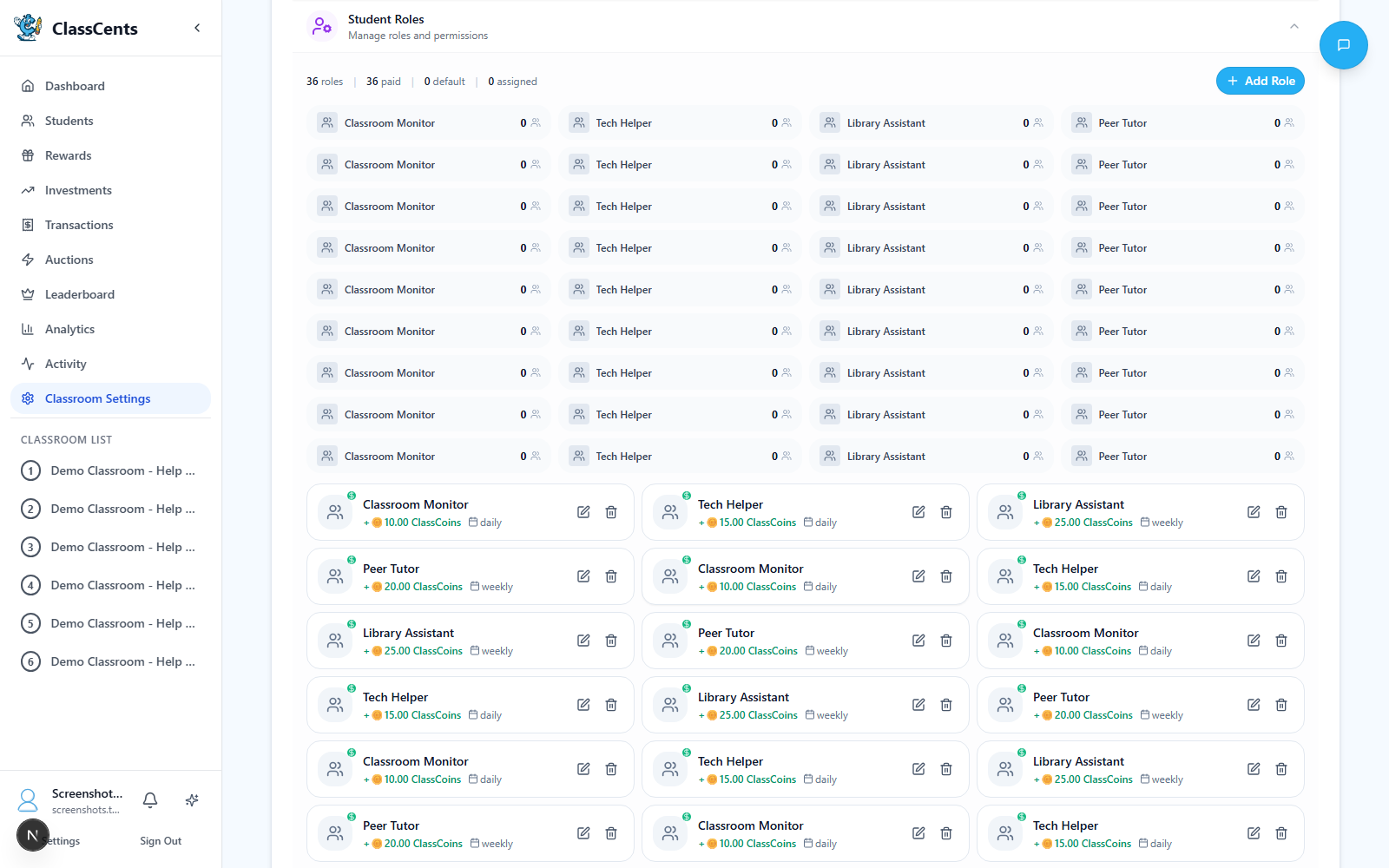 ## Accessing Payment Schedule Settings
Go to **Settings** → **Classroom Settings** → **Payment Schedule**
See your current payment configuration and next scheduled payment times
Adjust any of the timing settings to match your preferences
Changes take effect immediately - next payment will use new schedule
## Configuration Options
### Timezone Selection
Choose your local timezone so times make sense for your schedule
**Available options**: All US and Canada timezones (Eastern, Central, Mountain, Pacific, Alaska, Hawaii, Atlantic, Newfoundland)
**Example**: Set to "America/New\_York" for Eastern Time
Choose YOUR timezone even if students are in different timezones - payments should align with YOUR schedule for managing the classroom!
### Daily Payment Schedule
What hour of day (0-23) should daily payments process?
**Recommendations**:
* **5 AM**: Before school (default) - students see payments when they arrive
* **7 PM**: Evening - payments ready for next day
* **Midnight**: Start of new day
### Weekly Payment Schedule
Which day of week (0=Sunday through 6=Saturday)?
**Common choices**:
* **Friday (5)**: End of week reward (default)
* **Monday (1)**: Start week with payments
* **Sunday (0)**: Weekend processing
What time on that day?
Same as daily - typically early morning
### Bi-weekly Payment Schedule
**Bi-weekly requires configuration!** Before you can use bi-weekly job frequency, you must set up the reference date.
A starting point for bi-weekly cycle calculation
**Example**: Set to a recent payment date (e.g., "2026-02-21")
The system calculates payments every 14 days from this date
Which day of the week should bi-weekly payments occur? (0-6)
What time of day? (0-23)
The reference date establishes your bi-weekly cycle:
* **Set to**: Any past Friday (if you want Friday payments)
* **System calculates**: Every 14 days from that date
* **Example**: Reference date Feb 7 → payments Feb 7, 21, Mar 7, 21, etc.
Pick a recent date that falls on your preferred day of week!
### Monthly Payment Schedule
Which day of the month?
**Popular choices**:
* **1st**: Beginning of month (default)
* **15th**: Mid-month
* **Last school day**: End-of-month celebration
What time on that day? (0-23)
If you choose day 29, 30, or 31, payments will process on the last day of shorter months (e.g., Feb 28th if you selected 31st).
## How Payments Are Processed
The system checks every hour to see if any classrooms have payments due
For your classroom, systems checks:
* Current time in YOUR timezone
* Does it match your configured schedule for any frequency?
* Are any students assigned to jobs with that frequency?
If payments are due:
* Finds all students with active job assignments
* Creates transaction records
* Awards currency to student balances
* Logs payment with reason
System tracks which periods have been paid to prevent double-payments
The system runs hourly, but only processes payments when YOUR classroom's schedule indicates payments are due. No payments happen outside your configured times!
## Default Settings (Backwards Compatible)
If you don't configure payment schedules, these defaults are used:
* **Timezone**: UTC
* **Daily**: 5:00 AM
* **Weekly**: Fridays at 5:00 AM
* **Monthly**: 1st of month at 5:00 AM
* **Bi-weekly**: Not available until configured
These defaults match the previous system behavior, so existing classrooms continue working normally!
## Live Payment Preview
The Payment Schedule settings page shows **Next Payment Times** for all frequencies:
* **Next Daily**: Tomorrow at your configured hour
* **Next Weekly**: Next occurrence of your chosen weekday
* **Next Bi-weekly**: Next 14-day cycle date (if configured)
* **Next Monthly**: Next occurrence of chosen day of month
Use this preview to verify your settings are correct!
## Use Cases
**Who**: Teachers who want payments ready when students arrive
**Benefit**: Students see earnings first thing, starts day positively
**Set**: Daily at 5 AM, Weekly Friday 5 AM, Monthly 1st at 5 AM
**Who**: Teachers who process payments before going home
**Benefit**: Payments process during work hours, issues can be addressed same day
**Set**: Daily at 4 PM, Weekly Friday 4 PM
**Who**: Teachers who want hands-off overnight processing
**Benefit**: Process while you're relaxing, ready next morning
**Set**: Daily at 8 PM, Weekly Thursday 8 PM (ready for Friday)
**Who**: Teachers who want to review and approve Monday mornings
**Benefit**: Start the week with payments, Friday is too rushed
**Set**: Weekly Monday 7 AM
## Important Notes
**Timezone Note**: This payment timezone is separate from your profile timezone (which is used for viewing analytics). This only affects WHEN automated payments occur.
**Changes take effect immediately** - next payment uses new schedule
**Doesn't affect manual transactions** - you can still award points anytime
**Per-classroom setting** - each classroom can have different schedules
**Cron runs hourly** - checks your schedule every hour but only pays when due
## Troubleshooting
**Check**:
1. Verify timezone is correct
2. Check that current time matches configured schedule
3. Ensure students are assigned to jobs
4. For bi-weekly, verify reference date is set
5. Check Vercel logs if still not working
**Solution**:
1. Verify timezone setting matches your location
2. Remember times are in 24-hour format (14 = 2 PM)
3. Check that you set the right frequency's time
4. Save changes after updating
**This is expected!** Bi-weekly frequency is disabled in job forms until you:
1. Go to Payment Schedule settings
2. Set a reference date for bi-weekly payments
3. Save the settings
4. Return to job form - bi-weekly now available
## Related Topics
Create and assign paid classroom jobs
View automatic payment transactions
## Accessing Payment Schedule Settings
Go to **Settings** → **Classroom Settings** → **Payment Schedule**
See your current payment configuration and next scheduled payment times
Adjust any of the timing settings to match your preferences
Changes take effect immediately - next payment will use new schedule
## Configuration Options
### Timezone Selection
Choose your local timezone so times make sense for your schedule
**Available options**: All US and Canada timezones (Eastern, Central, Mountain, Pacific, Alaska, Hawaii, Atlantic, Newfoundland)
**Example**: Set to "America/New\_York" for Eastern Time
Choose YOUR timezone even if students are in different timezones - payments should align with YOUR schedule for managing the classroom!
### Daily Payment Schedule
What hour of day (0-23) should daily payments process?
**Recommendations**:
* **5 AM**: Before school (default) - students see payments when they arrive
* **7 PM**: Evening - payments ready for next day
* **Midnight**: Start of new day
### Weekly Payment Schedule
Which day of week (0=Sunday through 6=Saturday)?
**Common choices**:
* **Friday (5)**: End of week reward (default)
* **Monday (1)**: Start week with payments
* **Sunday (0)**: Weekend processing
What time on that day?
Same as daily - typically early morning
### Bi-weekly Payment Schedule
**Bi-weekly requires configuration!** Before you can use bi-weekly job frequency, you must set up the reference date.
A starting point for bi-weekly cycle calculation
**Example**: Set to a recent payment date (e.g., "2026-02-21")
The system calculates payments every 14 days from this date
Which day of the week should bi-weekly payments occur? (0-6)
What time of day? (0-23)
The reference date establishes your bi-weekly cycle:
* **Set to**: Any past Friday (if you want Friday payments)
* **System calculates**: Every 14 days from that date
* **Example**: Reference date Feb 7 → payments Feb 7, 21, Mar 7, 21, etc.
Pick a recent date that falls on your preferred day of week!
### Monthly Payment Schedule
Which day of the month?
**Popular choices**:
* **1st**: Beginning of month (default)
* **15th**: Mid-month
* **Last school day**: End-of-month celebration
What time on that day? (0-23)
If you choose day 29, 30, or 31, payments will process on the last day of shorter months (e.g., Feb 28th if you selected 31st).
## How Payments Are Processed
The system checks every hour to see if any classrooms have payments due
For your classroom, systems checks:
* Current time in YOUR timezone
* Does it match your configured schedule for any frequency?
* Are any students assigned to jobs with that frequency?
If payments are due:
* Finds all students with active job assignments
* Creates transaction records
* Awards currency to student balances
* Logs payment with reason
System tracks which periods have been paid to prevent double-payments
The system runs hourly, but only processes payments when YOUR classroom's schedule indicates payments are due. No payments happen outside your configured times!
## Default Settings (Backwards Compatible)
If you don't configure payment schedules, these defaults are used:
* **Timezone**: UTC
* **Daily**: 5:00 AM
* **Weekly**: Fridays at 5:00 AM
* **Monthly**: 1st of month at 5:00 AM
* **Bi-weekly**: Not available until configured
These defaults match the previous system behavior, so existing classrooms continue working normally!
## Live Payment Preview
The Payment Schedule settings page shows **Next Payment Times** for all frequencies:
* **Next Daily**: Tomorrow at your configured hour
* **Next Weekly**: Next occurrence of your chosen weekday
* **Next Bi-weekly**: Next 14-day cycle date (if configured)
* **Next Monthly**: Next occurrence of chosen day of month
Use this preview to verify your settings are correct!
## Use Cases
**Who**: Teachers who want payments ready when students arrive
**Benefit**: Students see earnings first thing, starts day positively
**Set**: Daily at 5 AM, Weekly Friday 5 AM, Monthly 1st at 5 AM
**Who**: Teachers who process payments before going home
**Benefit**: Payments process during work hours, issues can be addressed same day
**Set**: Daily at 4 PM, Weekly Friday 4 PM
**Who**: Teachers who want hands-off overnight processing
**Benefit**: Process while you're relaxing, ready next morning
**Set**: Daily at 8 PM, Weekly Thursday 8 PM (ready for Friday)
**Who**: Teachers who want to review and approve Monday mornings
**Benefit**: Start the week with payments, Friday is too rushed
**Set**: Weekly Monday 7 AM
## Important Notes
**Timezone Note**: This payment timezone is separate from your profile timezone (which is used for viewing analytics). This only affects WHEN automated payments occur.
**Changes take effect immediately** - next payment uses new schedule
**Doesn't affect manual transactions** - you can still award points anytime
**Per-classroom setting** - each classroom can have different schedules
**Cron runs hourly** - checks your schedule every hour but only pays when due
## Troubleshooting
**Check**:
1. Verify timezone is correct
2. Check that current time matches configured schedule
3. Ensure students are assigned to jobs
4. For bi-weekly, verify reference date is set
5. Check Vercel logs if still not working
**Solution**:
1. Verify timezone setting matches your location
2. Remember times are in 24-hour format (14 = 2 PM)
3. Check that you set the right frequency's time
4. Save changes after updating
**This is expected!** Bi-weekly frequency is disabled in job forms until you:
1. Go to Payment Schedule settings
2. Set a reference date for bi-weekly payments
3. Save the settings
4. Return to job form - bi-weekly now available
## Related Topics
Create and assign paid classroom jobs
View automatic payment transactions